Transform Any Photo into a Stunning Watercolor Print with Photoshop Elements
Have you ever admired the serene beauty of a watercolor painting and wished you could create one yourself, even without artistic talent? What if I told you that you could transform any cherished photograph into a breathtaking watercolor masterpiece, perfect for display or as a deeply personal gift? It sounds like magic, but with the power of Photoshop Elements, this artistic transformation is surprisingly simple and incredibly rewarding.
Imagine turning a snapshot of your childhood home, a beloved pet, a stunning landscape, or a memorable family gathering into a unique watercolor print. This isn’t about traditional painting skills; it’s about harnessing digital tools to unlock your inner artist and produce professional-looking results. Whether you’re aiming for a sentimental present for a loved one or a beautiful piece of art to adorn your own walls, this technique offers an unparalleled way to preserve memories with an artistic touch.
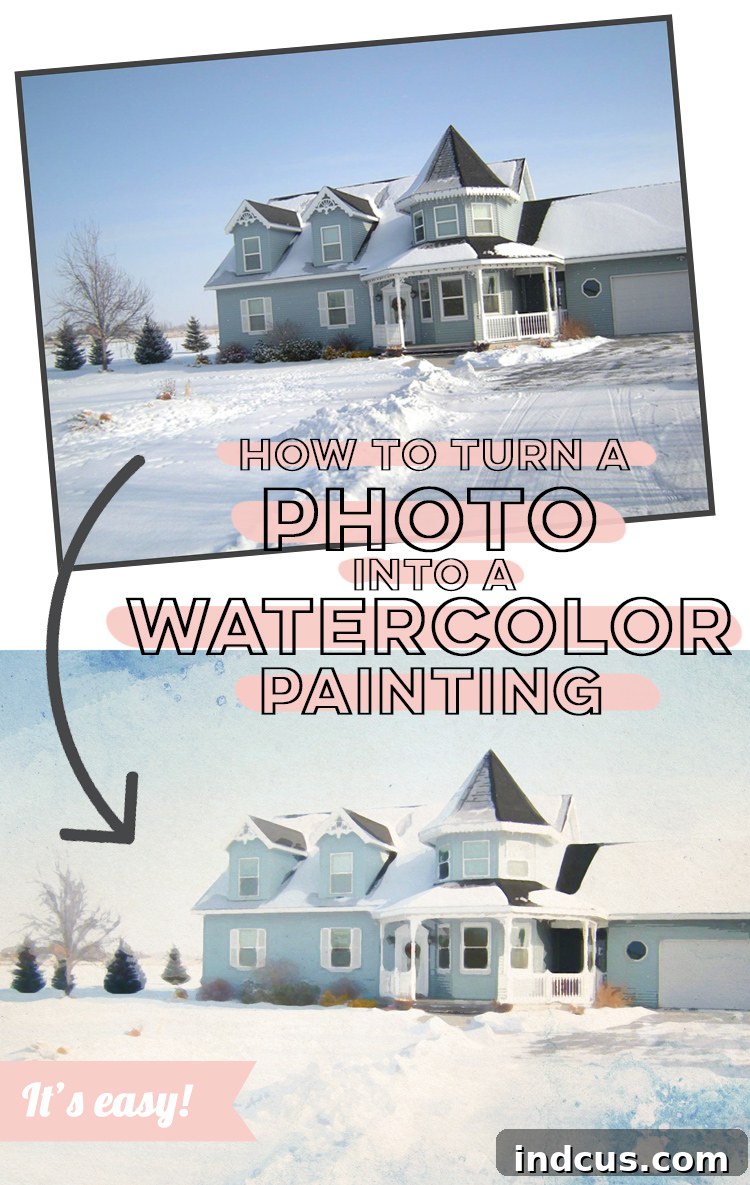
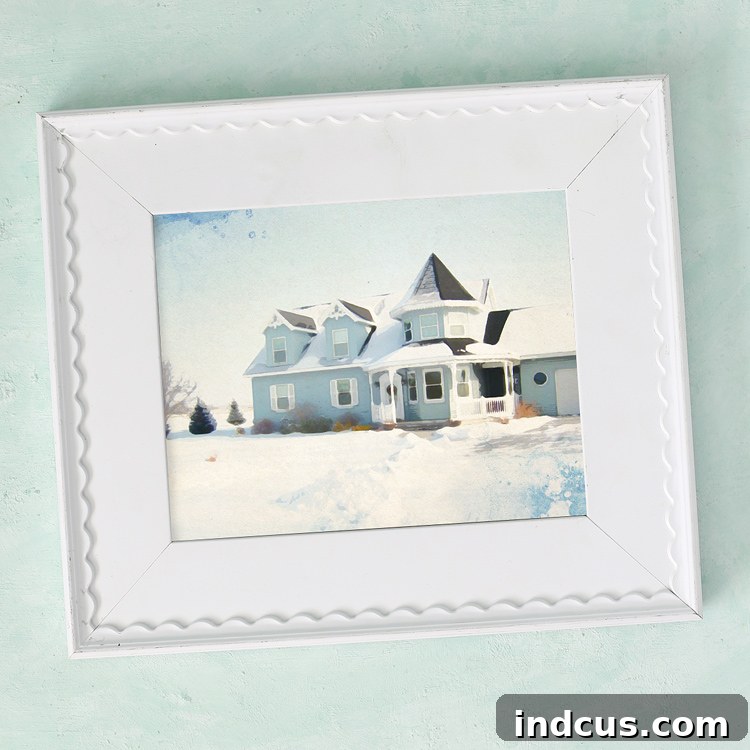
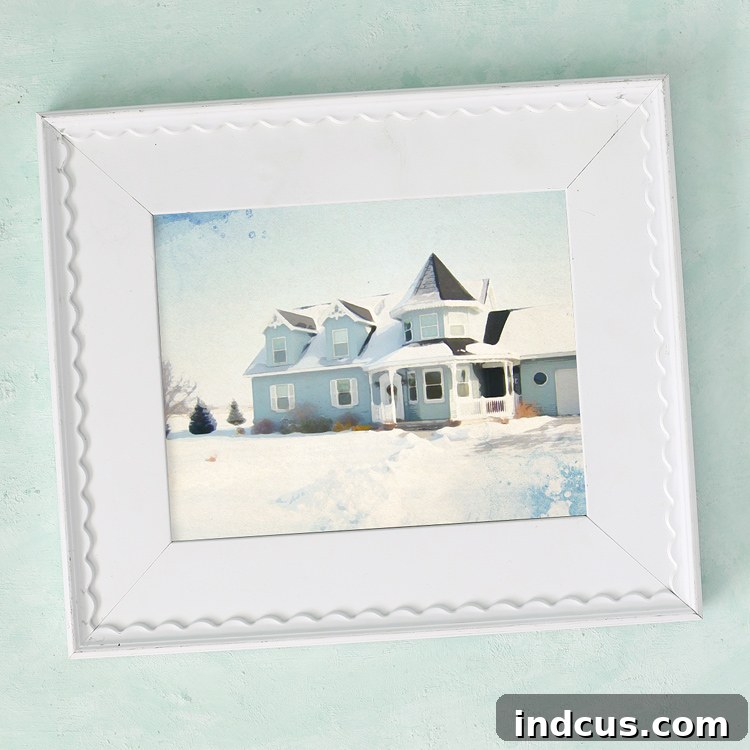
I recently embarked on this creative journey, turning a simple photograph of my parents’ house into a charming watercolor-style print. The result was so delightful and surprisingly easy to achieve that I’m thrilled to share the exact step-by-step process with you. Prepare to be amazed at how quickly and effortlessly you can create your own personalized watercolor art using Photoshop Elements!
Why Convert Photos to Watercolor Prints? The Allure of Digital Artistry
The appeal of watercolor art lies in its soft edges, vibrant yet translucent colors, and the dreamy, almost ethereal quality it lends to any subject. It evokes a sense of nostalgia, warmth, and artistic sophistication. However, mastering traditional watercolor painting requires time, practice, and a steady hand. This is where digital tools like Photoshop Elements become invaluable. They democratize art, allowing anyone to achieve stunning effects without needing to pick up a paintbrush.
Converting a photo to a watercolor print offers numerous benefits:
- Sentimental Value: It transforms personal photographs into unique keepsakes, making them even more special. Imagine a watercolor print of your first home, your wedding venue, or a favorite vacation spot.
- Unique Gift Idea: A custom watercolor print is an incredibly thoughtful and personal gift that stands out from store-bought items. It shows effort, creativity, and a deep understanding of the recipient’s memories.
- Artistic Enhancement: It can elevate an ordinary photograph into a piece of fine art, adding character and a handcrafted feel that a standard photo might lack.
- Preservation: It offers a beautiful way to interpret and preserve memories in an artistic format that can be proudly displayed for years to come.
- No Artistic Skill Required: The guided editing features in Photoshop Elements make this process accessible to beginners and seasoned photo editors alike.
This method truly is a game-changer for anyone looking to add an artistic flair to their photography collection or create memorable, personalized gifts.
Getting Started: What You’ll Need for Your Watercolor Project
Before diving into the digital transformation, ensure you have the following:
- Photoshop Elements (Version 2019 or later recommended): This tutorial specifically uses features available in newer versions of Photoshop Elements. While the core concepts might apply to older versions or even full Photoshop, the exact menu navigation and effect names may vary. Photoshop Elements is a more affordable and user-friendly alternative to Adobe Photoshop, designed for hobbyists and photographers who want powerful editing tools without the complexity of professional software.
- A High-Quality Photograph: The better the original photo, the better the final watercolor print will look. Ensure it’s well-lit, in focus, and has good resolution.
- A Reliable Printer (Optional, but Recommended): For printing at home, a good quality inkjet printer capable of handling thicker paper is ideal.
- Quality Paper: The choice of paper significantly impacts the final look of your print. Look for papers with a matte finish, slight texture, or specifically labeled as “fine art” or “watercolor” paper.
Step-by-Step Guide: How to Turn a Photo Into a Watercolor Print
Let’s walk through the process together. Even if you’re new to photo editing, Photoshop Elements’ guided edits make this incredibly straightforward.
Step 1: Select and Prepare Your Photograph
The foundation of any great digital art piece is the original image. For a compelling watercolor effect, choose a photograph that has good contrast, clear subject matter, and decent lighting. While almost any photo can be transformed, some subjects lend themselves better to the watercolor style:
- Landscapes and Nature Scenes: These often translate beautifully, with flowing colors and soft textures.
- Architecture and Buildings: Structures like homes, churches, or iconic landmarks can gain a charming, illustrative quality.
- Pets and Animals: Their fur and features can take on a lovely painted texture.
- People (with caution): While possible, turning portraits into watercolor prints can be tricky. Facial details tend to get softened or lost, which might not always be the desired effect. If you choose a portrait, look for one where expressions are clear but not overly detailed, or where the face is not the sole focus.
My example uses a photograph of my parents’ house. It’s a clear, well-composed image, but not professionally shot – proving that you don’t need a perfect photo to start with. Once you’ve chosen your photo, upload it to your computer and open it in Photoshop Elements 2019 (or your version).
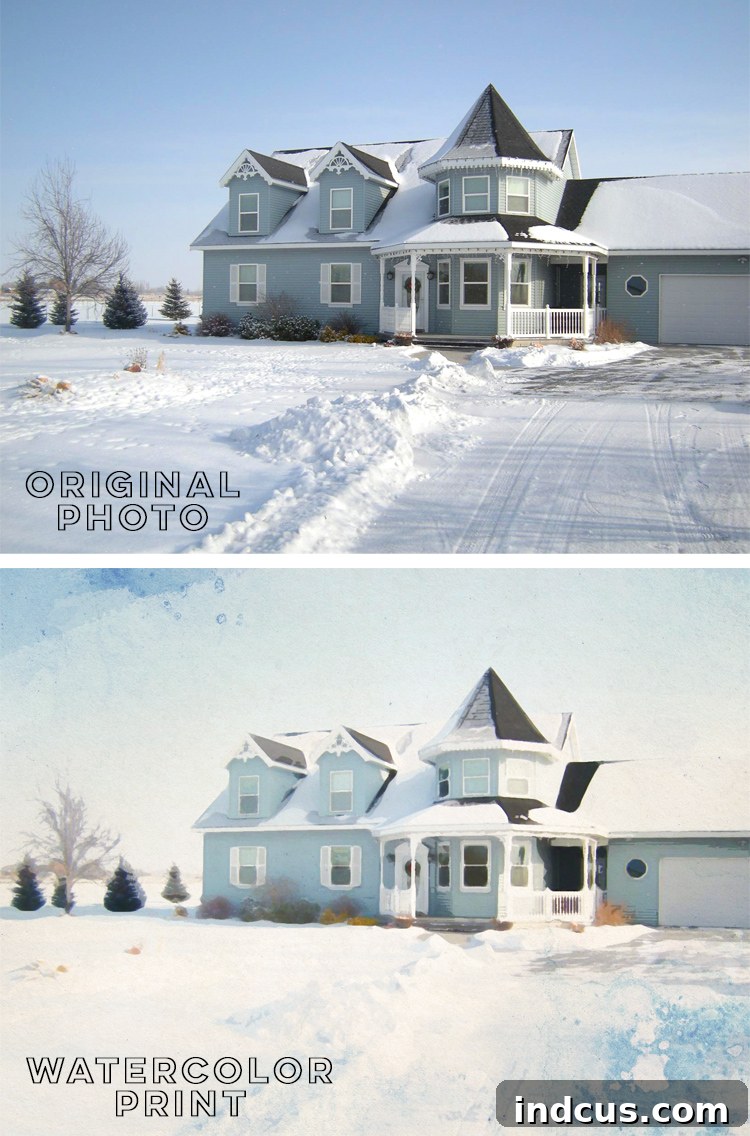
Before proceeding, ensure your image is reasonably cropped and free of major distractions, as these will carry over into your watercolor print.
Step 2: Navigate to the Guided Watercolor Effect
Photoshop Elements excels in its user-friendliness, especially with its “Guided” edits. These are pre-defined workflows that simplify complex editing tasks into a series of easy-to-follow steps. This is exactly what we need for our watercolor transformation.
From the main interface of Photoshop Elements:
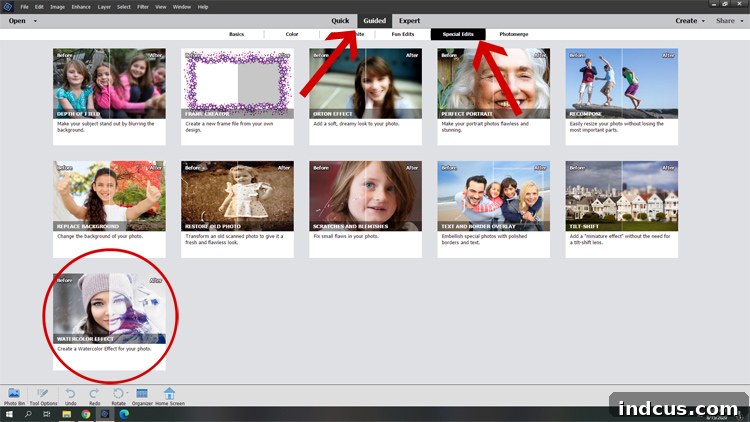
- Locate and click on the GUIDED tab. This is usually found in the top center of your Photoshop Elements window, distinct from the “Quick” and “Expert” modes.
- Once in the Guided mode, you’ll see various categories of edits listed on the left pane. Click on the SPECIAL EDITS tab. This section is home to a range of creative effects, including the one we’re looking for.
- Scroll down through the options within the Special Edits menu until you find the WATERCOLOR EFFECT. Click on this option.
The program will now guide you through the process, providing a preview window and control panels to customize the effect.
Step 3: Unleashing Your Inner Artist with Customization
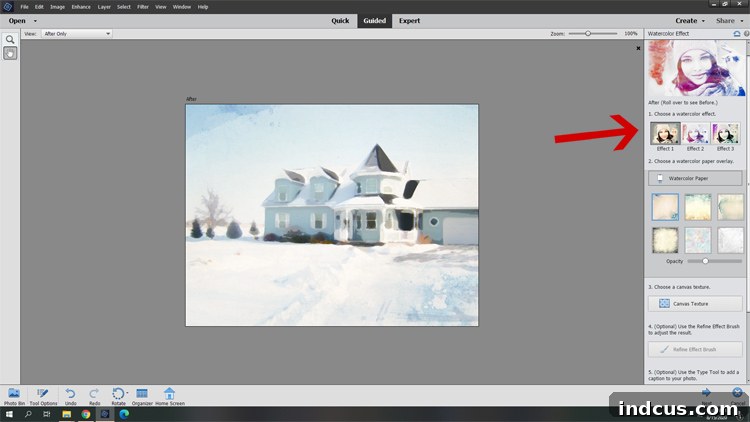
This is where the real fun begins! On the right-hand side of your screen, you’ll see a panel with various controls and options specifically designed for the Watercolor Effect. Photoshop Elements typically offers several “Effect” presets and “Watercolor Paper” options, along with sliders for opacity and other adjustments.
The beauty of this step is its non-destructive nature. You can click, drag, and experiment with every setting without fear of permanently altering your original photograph. Here’s how to approach it:
- Experiment with Effects: There are usually multiple “Effect” presets (e.g., Effect 1, Effect 2, etc.). Each applies a slightly different watercolor style, varying in brush stroke appearance, color saturation, and overall “painted” feel. Click through each one to see how it transforms your image. For my example of the house, I found “Effect 1” provided a lovely base.
- Choose Your Watercolor Paper: Beyond the painted effect, you can also overlay different watercolor paper textures. These textures can add a realistic feel, mimicking the subtle grain and absorbency of actual watercolor paper. Try different options – some might be smoother, others rougher, each contributing a unique character to your digital artwork.
- Adjust Opacity: This slider is crucial. It controls the intensity of the watercolor effect and the visibility of the underlying photograph. A lower opacity will show more of the original photo’s details, creating a subtle, hinted watercolor look. A higher opacity will lean more towards a fully painted appearance, with fewer photographic details. I set my paper option to about 30% opacity to allow some of the original image’s crispness to shine through, blending it seamlessly with the watercolor texture.
- Explore Additional Sliders/Options: Depending on your Photoshop Elements version, you might find additional sliders for detail, color intensity, or brush size. Play with these to fine-tune the look. For instance, increasing “detail” might bring back more photographic sharpness, while adjusting color can enhance the vibrancy or soften the tones.
The key here is active experimentation. Don’t settle for the first result; keep clicking and dragging until you achieve an artistic style that resonates with you. Remember, there’s no right or wrong answer – it’s all about personal preference and creative vision.
Once you’re satisfied with your digital watercolor art, save your work. You can choose to save it as a new file, preserving your original photograph untouched.
Step 4: Printing Your Masterpiece for a Tangible Result
While a digital file is great, seeing your watercolor creation as a physical print truly brings it to life. The printing stage is just as important as the editing stage, as the choice of paper and printer can dramatically impact the final look and feel of your artwork.
- Choosing the Right Paper: This is arguably the most critical decision for achieving a realistic watercolor print.
- Heavyweight Matte Paper: A common and excellent choice. Look for papers with a weight of 200gsm (grams per square meter) or higher. Matte finishes prevent glare and absorb ink beautifully, giving a soft, artistic look.
- Textured Fine Art Paper: For the most authentic feel, consider papers specifically designed to mimic watercolor paper. Brands like Canson, Hahnemühle, or Epson often offer “watercolor paper” or “fine art paper” for inkjet printers. These typically have a subtle woven texture that adds depth and realism to your print, making it feel like an actual painting.
- Satin or Luster Paper: While not traditional for watercolor, these can offer a slight sheen that enhances colors, if you prefer a more vibrant, semi-glossy finish. Avoid full glossy papers, as they tend to look too photographic.
You can find a wide variety of excellent paper options at craft stores like Michaels or Hobby Lobby, or through online art supply retailers. Don’t underestimate the power of paper – it can elevate a good digital print to an exquisite piece of art.
- Printing at Home vs. Professional Services:
- Home Printing: If you own a decent inkjet printer, especially one designed for photo printing, you can achieve excellent results at home. Ensure your printer settings are optimized for high quality, and select the correct paper type in your printer driver for optimal ink dispersion and color accuracy. Calibrating your monitor and printer can further improve color matching.
- Professional Printing Services: If you don’t have a high-quality printer or want the absolute best results, consider sending your digital file to a professional print service. Places like Office Depot, Staples, FedEx Office, or dedicated online fine art printers (e.g., Shutterfly, Mpix, local print shops) offer superior printing quality, a wider range of paper options, and often larger print sizes. This is usually an inexpensive option and ensures professional-grade output.
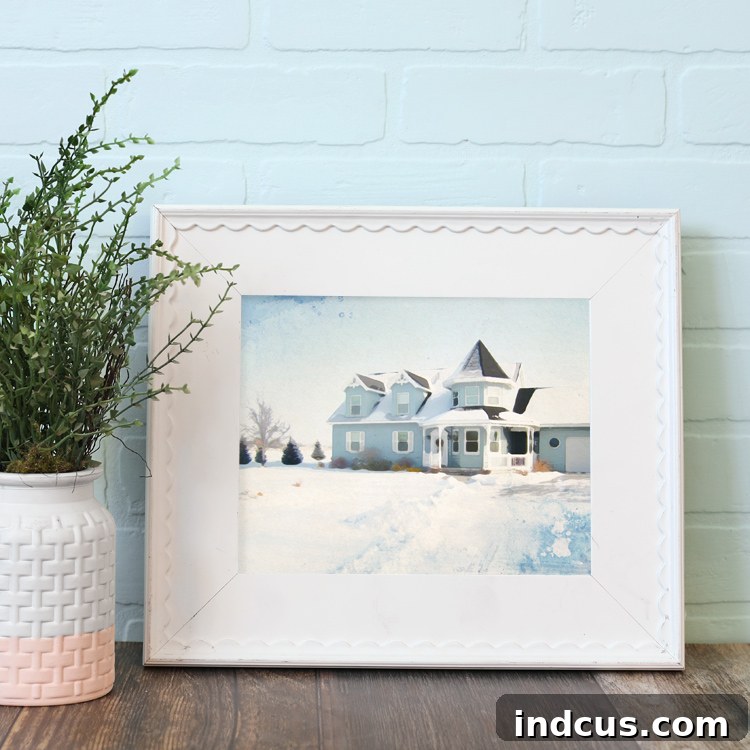
Once your artwork is printed, consider framing it to protect it and enhance its display. A simple, elegant frame can beautifully complement your new watercolor print, transforming it into a cherished piece of decor or the most perfect sentimental gift ever!
Beyond the Basics: Tips for Stunning Watercolor Prints
To ensure your watercolor prints consistently turn out spectacular, keep these additional tips in mind:
- Start with Good Contrast: Images with decent contrast will generally yield more defined watercolor effects. If your original photo is flat, consider a slight contrast adjustment in Photoshop Elements before applying the watercolor filter.
- Consider Color Palettes: Think about the color scheme of your photo. Some images with a limited color palette might look particularly striking as watercolors, while others might benefit from vibrant hues.
- Less is Often More: While experimentation is encouraged, sometimes a subtle watercolor effect is more elegant than an overly aggressive one. Adjusting the opacity carefully can help achieve this balance.
- Batch Processing (for multiple prints): Once you’ve perfected a look for one photo, you can often apply similar settings to other photos of a similar style or subject, streamlining your workflow.
- Presentation Matters: How you present your finished print can elevate its perceived value. A well-chosen frame and mat board can make a huge difference.
Conclusion: Your Artistic Journey Begins Now!
Transforming a photograph into a watercolor print using Photoshop Elements is a wonderfully creative and accessible way to produce stunning, personalized art. It bridges the gap between photography and traditional painting, allowing you to capture memories with an artistic flair that is both unique and deeply personal.
Whether you’re creating a heartfelt gift for a family member, decorating your own living space with custom artwork, or simply exploring a new facet of digital creativity, this technique offers endless possibilities. The process is intuitive, rewarding, and requires no prior artistic talent – just a willingness to explore the guided features of Photoshop Elements.
So, gather your favorite photographs, open up Photoshop Elements, and embark on your own journey to create beautiful, lasting watercolor prints. You’ll be amazed at what you can achieve, turning everyday snapshots into extraordinary works of art that tell a story and warm the heart.
Love this creative idea? Be sure to pin it to your favorite boards so you can easily find this tutorial again whenever inspiration strikes!