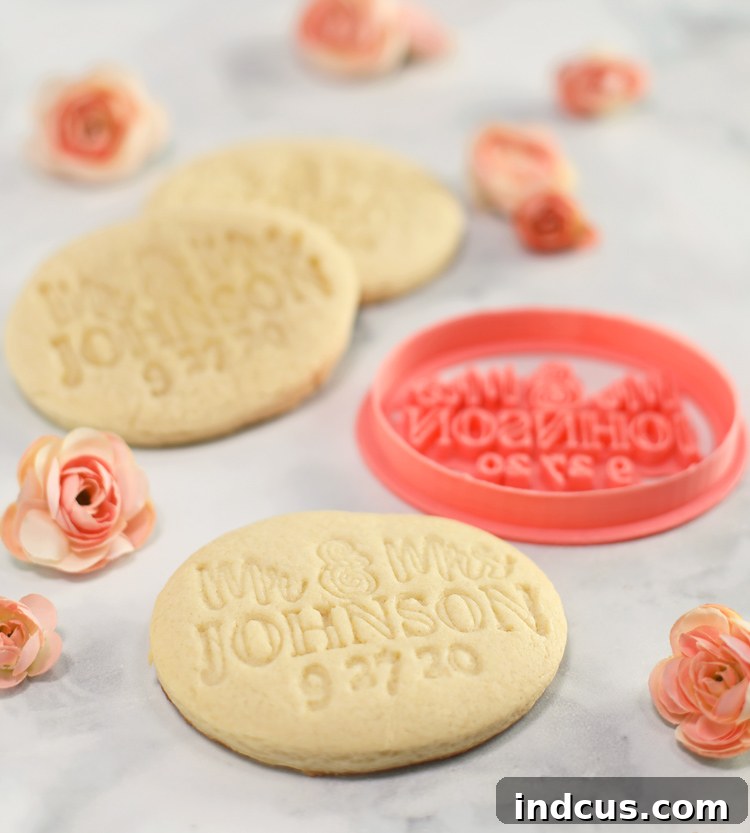
Mastering Custom Cookie Cutter Stamps with Your Silhouette Alta 3D Printer: A Comprehensive Guide
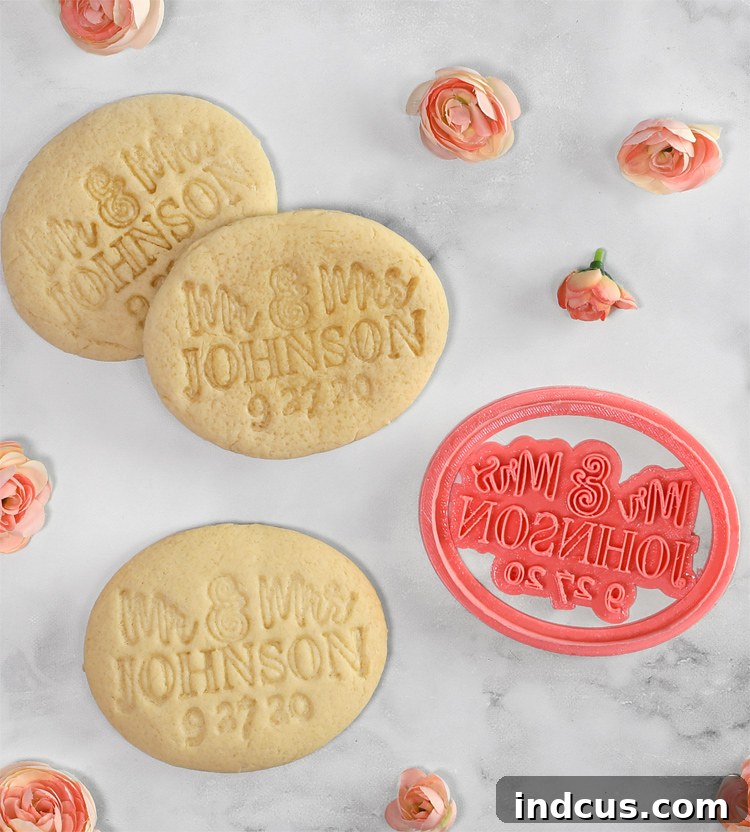
Unleash your creativity in the kitchen and craft room by learning how to design and print your very own custom cookie cutter stamps using the versatile Silhouette Alta 3D Printer. This guide will walk you through the entire process, transforming your unique ideas into tangible, functional tools that can personalize everything from baked goods to handmade ornaments. Imagine charming, custom-stamped cookies perfect for memorable occasions like weddings, milestone birthdays, corporate events, or festive holiday gatherings. Beyond traditional cookies, this technique is incredibly versatile. You can use these specialized cutters to precisely cut and elegantly stamp fondant, creating intricate toppers for cupcakes and cakes. For non-edible projects, these stamps are fantastic for crafting personalized salt dough ornaments, unique air-dry clay labels, or even engaging playdough tools for children, adding a delightful touch to their imaginative play. The possibilities are truly endless, making this method an invaluable skill for crafters, bakers, and DIY enthusiasts alike.
This creative endeavor is made possible through our valued partnership with Silhouette, to whom we extend our sincere gratitude.
For this exciting project, we’ll be utilizing the powerful yet user-friendly Silhouette Alta 3D Printer. This compact desktop 3D printer is an excellent choice for beginners and experienced users alike, offering intuitive software integration and reliable performance. It comes complete with all the essential tools and software needed to embark on your 3D printing journey right out of the box. To add a vibrant touch to our custom cookie cutter, we’ll be using high-quality pink 3D printer filament, though Silhouette offers a wide array of colors to match any theme or preference. As a special offer for our readers, you can enjoy a 10% discount on your regular-priced Silhouette order by simply clicking through our exclusive affiliate link and exploring the vast collection of products available.
Detailed Instructions for Creating Your Custom Cookie Cutter Stamp
Follow these step-by-step instructions to design, print, and utilize your personalized cookie cutter stamp effectively.
Step 1: Craft Your Design in Silhouette Studio
The journey begins in Silhouette Studio, a design software familiar to many users of Silhouette cutting machines like the Cameo. Its intuitive interface makes it incredibly easy to bring virtually any design concept to life, whether you’re creating custom text, intricate shapes, or even importing existing artwork. For those seeking inspiration or ready-made elements, the Silhouette Design Store offers a rich library of downloadable designs. The key to a successful cookie cutter stamp lies in creating two distinct, yet complementary, parts: the outer cutting shape and the inner stamping impression. Think of the outer shape as the perimeter that will slice through your dough, while the inner stamp will gently press a design onto the surface without cutting all the way through. Once you’ve meticulously crafted your design, ensuring clean lines and appropriate sizing for a cookie, it’s crucial to save these components as separate files. One file should contain only the outside cutting shape, and the second file should exclusively house the inside stamp design. Save both directly to your computer as Silhouette Studio files, ready for the next stage of the process. When designing, consider the thickness of your cutter walls (typically at least 1-2mm) to ensure durability and a clean cut, and avoid excessively fine details on the stamp that might not register well in dough.
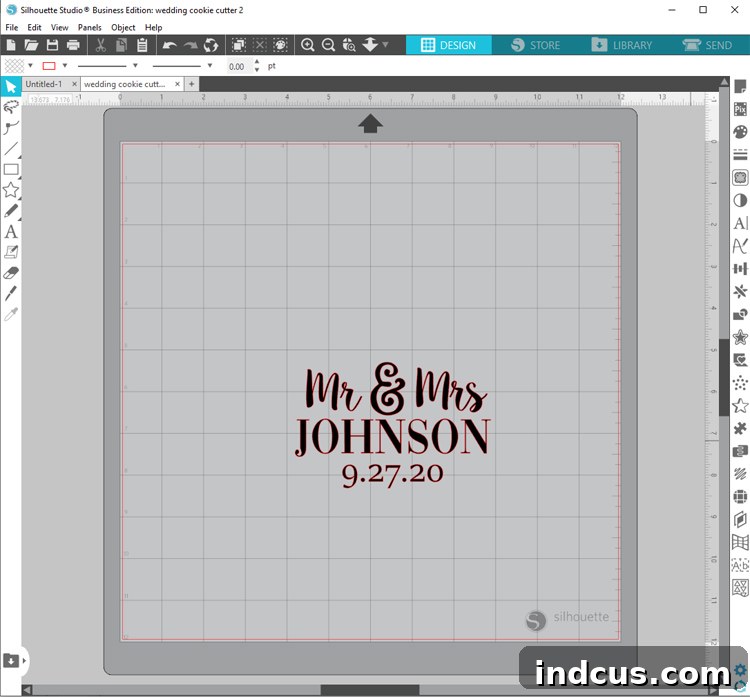
Step 2: Transform Your 2D Design into a 3D Model with Silhouette 3D Software
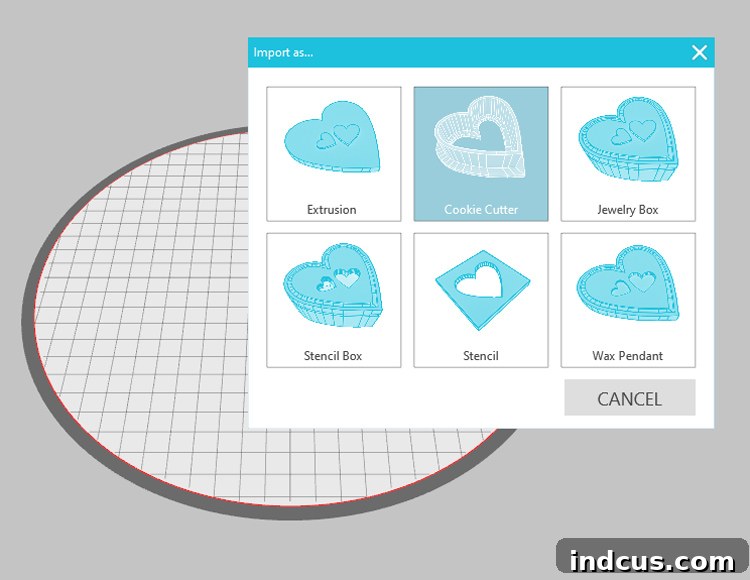
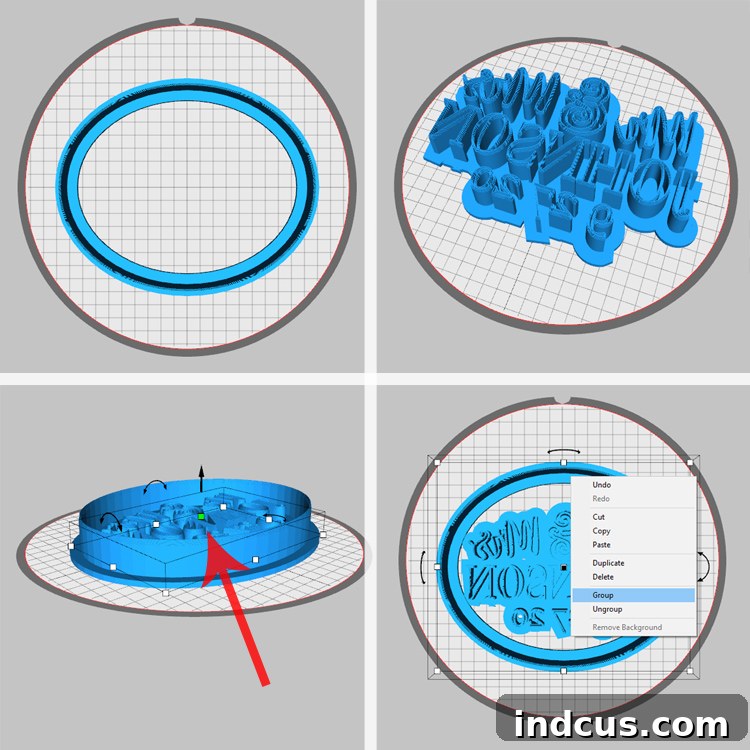
With your 2D designs finalized, it’s time to transition them into three-dimensional models suitable for printing. Open the Silhouette 3D software, the dedicated program for your Alta printer. Navigate to FILE > OPEN and locate the Silhouette Studio file you just created for your outer cookie cutter shape. Upon opening, a specialized window will appear, presenting various conversion options. Herein lies the magic: select the “Cookie Cutter” option. With a simple click, your flat 2D design will be automatically and intelligently converted into a fully functional 3D cookie cutter model, complete with a cutting edge and a comfortable grip handle. This remarkable feature simplifies what would otherwise be a complex 3D modeling task. Repeat this precise process for both of your previously saved files – the outer cutting shape and the separate inner stamp design. This ensures that each component is correctly prepared for integration and printing, maintaining the structural integrity and design intent of both parts.
Step 3: Combine and Align the Cookie Cutter Components
Now that both your outer cutter and inner stamp have been converted into 3D models, it’s time to bring them together. Start by selecting the 3D model of your outside shape. Right-click on it and choose “COPY.” Then, navigate to the open file containing your inner stamp design. Right-click anywhere on the workspace and select “PASTE” to bring the outside shape into the same view as your inner stamp. The goal here is to carefully position the two pieces so they perfectly align. Use the manipulation tools within Silhouette 3D to move, rotate, and scale (if necessary) the outer shape until it snugly encompasses the inner stamp, creating a single, cohesive unit. Precision in this step is vital for a clean-cutting and well-stamping finished product.
Step 4: Adjust the Height of the Inner Stamp for Perfect Impressions
For your cookie cutter stamp to function correctly and create a clear impression without cutting through the entire cookie, the inner stamp must be shorter in height than the outer cutting edge. To achieve this, click directly on the inner stamp design within the software. Several small white boxes, known as manipulators, will appear around the selected object. Locate the white box positioned in the center of the top surface of the stamp – this is your control point for adjusting the object’s height. Click on this central box, and arrows will appear, allowing you to drag the object along the Z-axis. Carefully drag the arrow downwards, reducing the height of the inner stamp until it is approximately half the height of the outer cutting shape. This differential in height ensures that when you press the combined tool into dough, the outer edge cuts the cookie, while the shorter inner stamp merely presses an intricate design onto the surface, leaving the cookie intact and beautifully decorated.
Step 5: Group Both Designs for Unified Printing
Once you are completely satisfied with the alignment and height difference between your outer cutter and inner stamp, the final preparatory step in the software is to group them. Select both designs simultaneously (you can typically do this by dragging a selection box around both objects or by holding down Shift and clicking on each one). With both designs highlighted, right-click on either one and select the “Group” option from the contextual menu. Grouping these elements is crucial because it merges them into a single, unified 3D object. This ensures that the Silhouette Alta 3D Printer recognizes them as one cohesive unit, printing them together seamlessly as a combined cookie cutter stamp rather than as two separate, unattached components. This step guarantees a sturdy and functional final product.
Step 6: Prepare Your Silhouette Alta 3D Printer and Load Filament
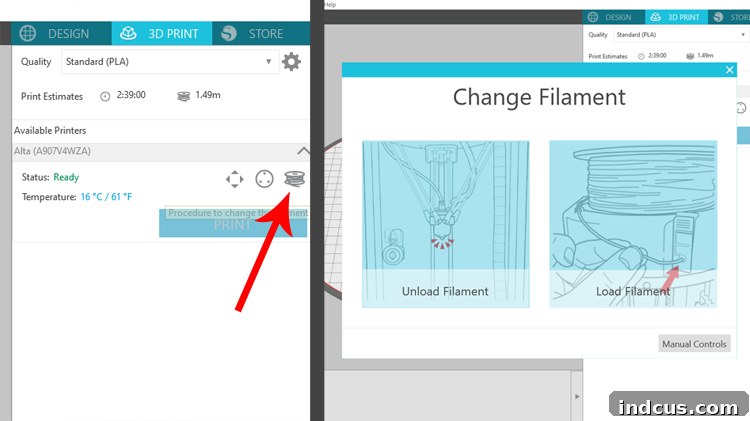
With your design finalized and grouped in the software, it’s time to prepare your hardware. Begin by plugging in your Silhouette Alta 3D Printer and powering it on. Connect the USB cable from the printer to your computer, establishing communication between the software and the machine. In the Silhouette 3D software, locate and click on the “3D PRINT” tab, typically found in the upper right-hand corner of the screen. This tab opens the print control interface. Next, click on the spool icon, which will initiate the filament loading process. Follow the clear, on-screen directions to carefully feed your chosen pink filament into the printer’s extruder. Ensure the filament is properly seated and that the printer is heating up to the correct temperature for the chosen filament type (usually PLA for the Alta). A smooth filament loading process is key to preventing printing errors.
Step 7: Initiate the 3D Printing Process
Once the filament is successfully loaded and the printing tip (hot end) has reached its optimal operating temperature, carefully load the printing platform into the machine. Double-check that a fresh platform tape sheet is securely applied to the top surface of the platform; this tape is crucial for ensuring proper print adhesion and preventing your design from warping or detaching mid-print. With everything in place, follow the final prompts within the Silhouette 3D software to officially begin printing your custom cookie cutter stamp. For quality and speed, the “STANDARD” printing quality option typically provides an excellent balance for this type of project, yielding durable and detailed results without excessively long print times. While higher quality settings are available, “STANDARD” is often sufficient for functional cookie cutters. The print job for a typical cookie cutter of this size usually takes approximately 2.5 hours, allowing the Alta to meticulously build your design layer by layer.
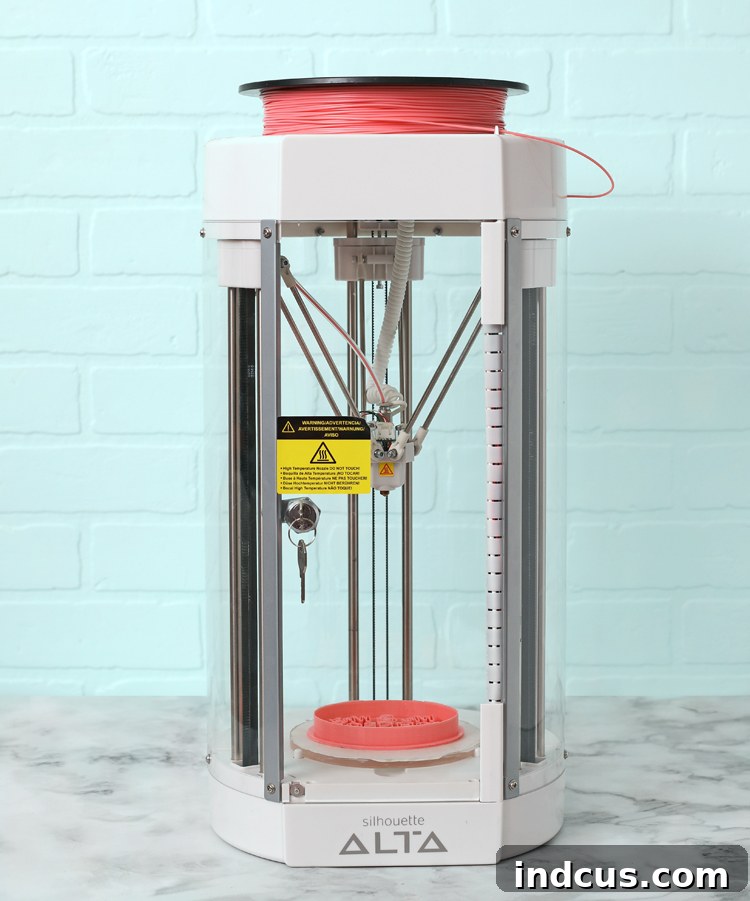
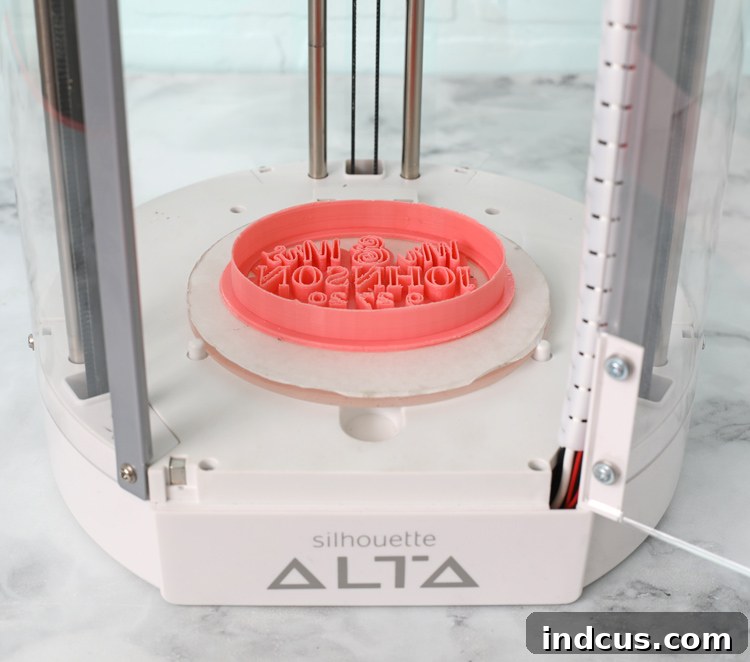
Behold! A perfectly crafted, custom cookie cutter stamp has materialized! Once the 3D printer has completed its task, patience is key. It’s essential to wait a few minutes for the newly printed plastic object to cool completely. As plastic cools, it contracts slightly, making removal much easier and reducing the risk of damaging the print or warping its shape. Once cooled, use the included spatula tool (or a similar flat, thin implement) to gently pry the design off the printing platform. Work slowly and carefully around the edges to avoid breaking delicate parts or scratching the platform tape. The result is a robust and unique tool, ready for its inaugural use in the kitchen or craft space.
Testing Your Custom Cookie Cutter Stamp and Decorating Ideas
After successfully printing your custom cookie cutter, the most exciting part is putting it to the test! I sourced a sugar cookie recipe specifically lauded for its non-spreading properties, ideal for cut-out cookies where shape retention is paramount. Using my brand-new, freshly printed cookie cutter, the process was a dream. I rolled the dough to a consistent thickness, just slightly below the height of the cutter’s outer edge. With a firm, even press, the cutter seamlessly sliced through the dough while simultaneously imprinting the custom design onto the cookie’s surface. The result was a perfectly cut cookie with a clear, crisp impression, all in one swift motion!
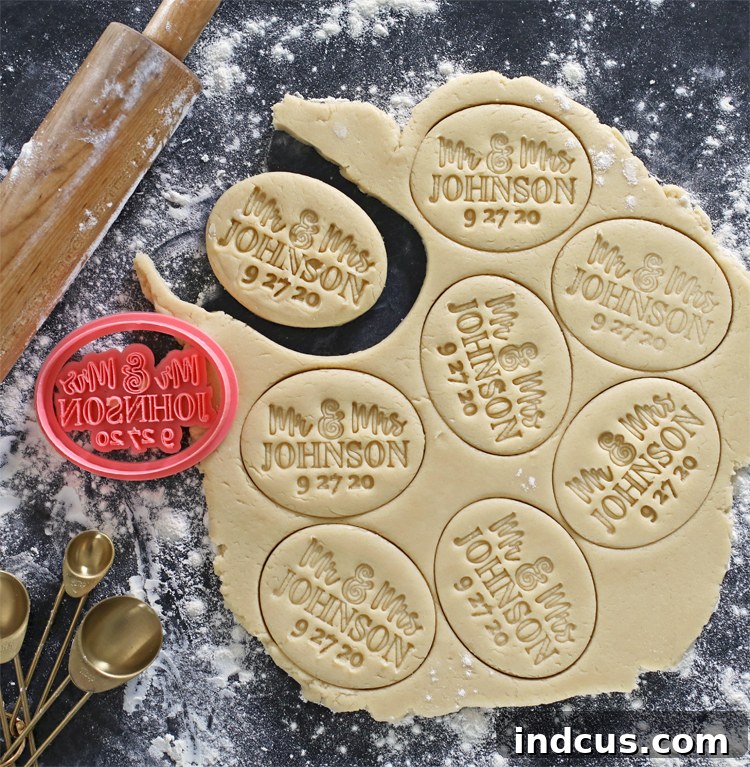
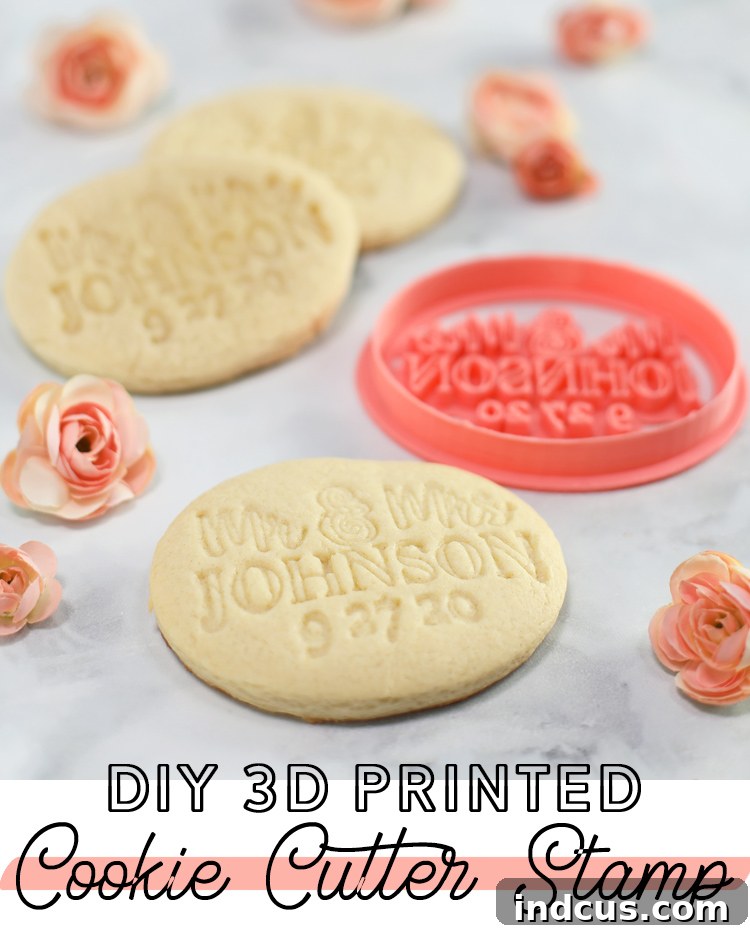
While my initial dough did exhibit a slight tendency to spread during baking – a common challenge with sugar cookie recipes (hence, I’m still perfecting the recipe before sharing!) – the cookies nonetheless turned out incredibly cute and retained much of their custom charm. This minor spreading serves as a good reminder for bakers to always chill their dough thoroughly before cutting and baking, as colder dough holds its shape better. Experimentation with different “no-spread” sugar cookie or shortbread recipes is highly encouraged to achieve optimal results with your custom stamps.
The beauty of custom-stamped cookies truly shines when it comes to decoration. There are countless creative avenues to explore:
- Simple Elegance: Leave them as is for a rustic, minimalist look that highlights the stamped design.
- Food Paint Artistry: Use edible food paints and fine brushes to meticulously fill in the embossed designs, creating miniature works of art.
- Vibrant Dough: Incorporate food coloring directly into your cookie dough before baking to create colorful cookies that accentuate the stamped pattern.
- Gilded Glamour: For a touch of luxury, delicately apply edible gold or silver leaf to parts of the design, adding a sophisticated shimmer.
- Royal Icing Accents: Outline and flood the stamped areas with royal icing, creating dimension and adding a classic cookie decorating finish.
The versatility of these 3D printed cookie cutter stamps is truly inspiring. I am constantly experimenting with new designs and decorative techniques, discovering endless possibilities for personalized treats and crafts. This method empowers you to bring unique ideas to life, making every occasion a little more special and every creation a reflection of your personal style.
Found this project inspiring? Pin it now so you don’t forget these fantastic DIY custom cookie cutter techniques!
This comprehensive guide was proudly sponsored by Silhouette America. All ideas, instructions, and opinions expressed are entirely our own, born from genuine passion and hands-on experience.