Transform Your Stand Mixer: Easy DIY Decals with Printable Vinyl and Silhouette!
There’s something truly special about a stand mixer. For many of us, it’s more than just an appliance; it’s a centerpiece in the kitchen, a workhorse that brings culinary dreams to life. And if you’re anything like me, your KitchenAid mixer holds a prime spot on the counter, always ready for action. When I received mine for Christmas, I instantly fell in love. However, I faced a common dilemma: choosing a permanent color for an appliance that would be a fixture in my home for years to come. My personal style and home decor tastes tend to evolve, so committing to a single mixer color felt restrictive.
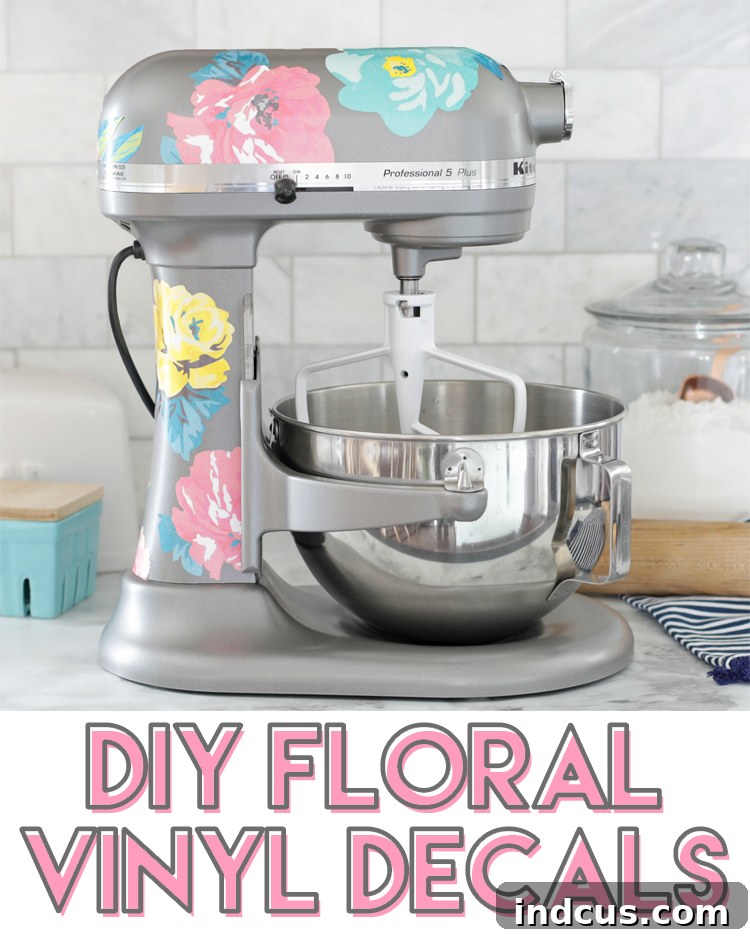
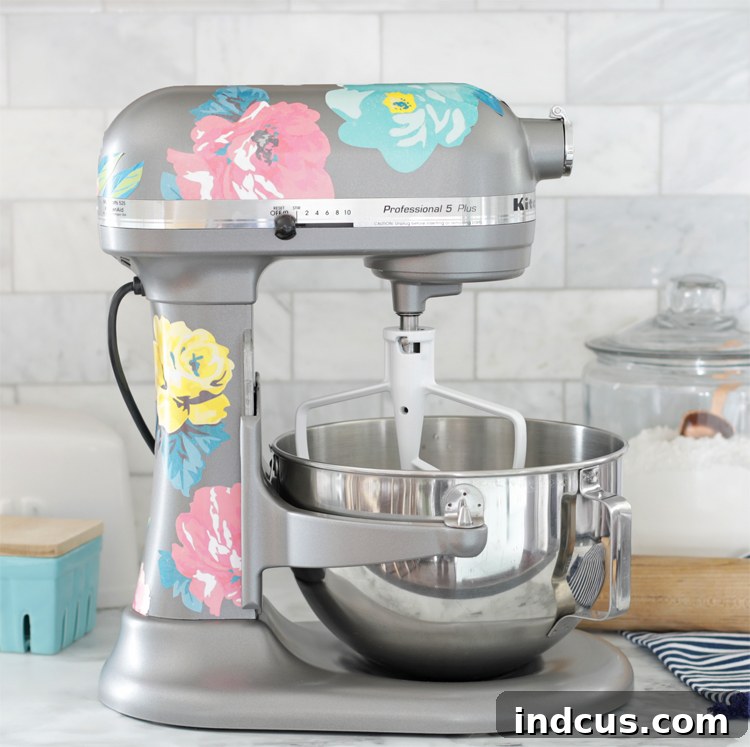
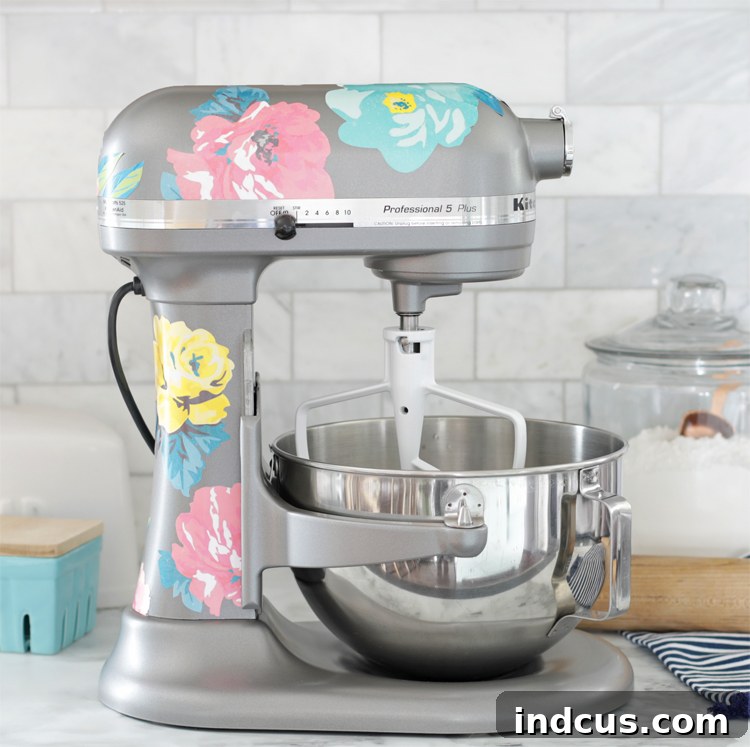
That’s why I’m incredibly excited to share this innovative and entirely non-permanent way to personalize your beloved stand mixer. Using custom printable vinyl decals, I’ve given my KitchenAid a delightful floral makeover, adding a vibrant pop of color and a whimsical touch that truly reflects my personality. It’s no longer just a functional appliance; it’s a stylish extension of my kitchen’s aesthetic, brimming with charm and character.
This inspiring project is proudly brought to you with the generous support of our sponsors at Silhouette.
Why Customize Your KitchenAid Stand Mixer with Decals?
Beyond simply adding visual appeal, customizing your stand mixer with vinyl decals offers a multitude of benefits, transforming a utilitarian appliance into a statement piece:
- Personal Expression: Your kitchen should feel like home, and what better way to achieve that than by infusing your unique style into every detail, including your appliances? Custom decals allow you to showcase your favorite patterns, colors, or themes, making your KitchenAid truly “yours.”
- Adaptable Decor: Unlike a permanent paint job or purchasing a mixer in a trendy color that might quickly become dated, printable vinyl decals offer ultimate flexibility. If your decor changes, or if you simply fancy a new look, these decals can be easily removed and replaced. Imagine refreshing your mixer with seasonal themes for holidays or introducing new designs to match a kitchen renovation!
- Cost-Effective Personalization: High-end custom mixers or limited-edition colors can be quite expensive. Decals provide an affordable way to achieve a bespoke, high-end look without the significant investment, allowing for frequent style updates.
- Protection and Durability: While primarily decorative, a well-sealed vinyl decal can also offer a minor layer of protection against minor scuffs and scratches on your mixer’s finish, all while being incredibly durable and easy to clean in a busy kitchen environment.
- Easy to Update: The entire process is straightforward and incredibly rewarding, making it an ideal DIY project for crafters of all skill levels looking to add a personal touch to their kitchen.
Essential Materials for Your Custom Stand Mixer Decals
Ready to embark on this exciting customization journey? Here’s a detailed list of what you’ll need to transform your stand mixer into a personalized masterpiece:
- Silhouette Printable Vinyl: This is the hero of our project! This special vinyl allows you to print any design directly onto it with your home printer, then cut it out precisely with your Silhouette machine. It’s designed for vibrant print quality and clean cuts. You can find it readily available at the Silhouette Design Store or conveniently purchase it from Amazon.
- Silhouette Cutting Machine: A Silhouette Cameo or Portrait machine is essential for accurately and intricately cutting your printed designs, ensuring professional-looking decals.
- Inkjet Printer: A standard color inkjet printer is perfect for printing your chosen designs onto the printable vinyl. Ensure your printer has fresh ink for the best color output.
- Clear Acrylic Sealing Spray: This crucial step ensures your printed designs are protected from moisture, smudging, and fading, which is especially important for kitchen appliances. I highly recommend Rustoleum Clear Coat (though it’s often more affordable at local stores like Walmart or hardware stores than online!).
- Silhouette Cutting Mat: The standard 12×12 inch mat is typically ideal for this project, holding your vinyl securely in place during the cutting process.
- Your Stand Mixer: Of course, your KitchenAid or other stand mixer, thoroughly cleaned and dry, ready for its stylish upgrade! Ensure the surface is free of grease and dust for optimal decal adhesion.
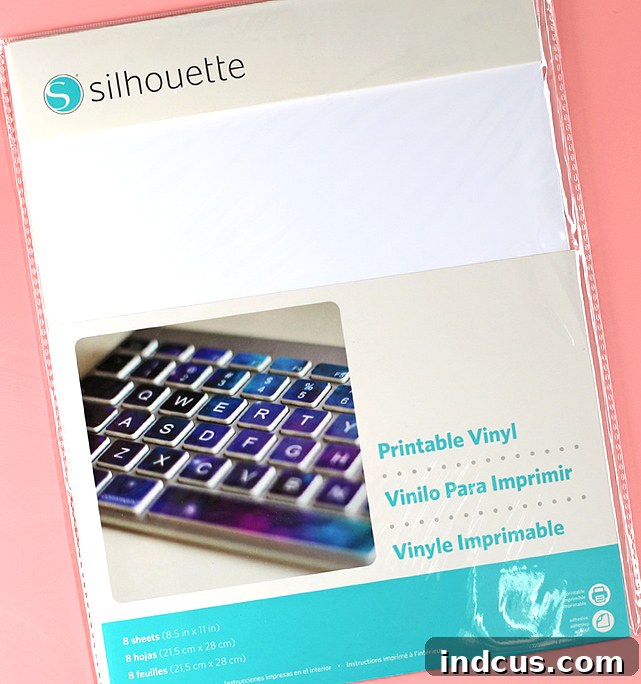
Choosing and Preparing Your Designs for Custom Stand Mixer Decals
The first and most exciting step is selecting the perfect designs that will bring your vision to life. The Silhouette Design Store is an absolute treasure trove, offering an incredible array of “Print & Cut” designs specifically created for projects like this. Whether you’re drawn to intricate florals, modern geometric patterns, whimsical illustrations, or even personalized monograms, you’ll find countless options to suit your aesthetic and complement your kitchen decor.
For my KitchenAid mixer, I opted for a beautiful collection of vibrant floral Print & Cut designs. These particular designs added a delightful touch of nature and cheer to my neutral mixer, transforming its appearance significantly. Here are the specific designs I used, which you can easily locate and purchase in the Silhouette Design Store: Design 247165, Design 245749, Design 247183, and Design 245713. Remember, the beauty of this project lies in its complete customization, so feel free to explore and choose designs that truly speak to your personal style and existing kitchen aesthetic. Experiment with different colors and styles to see what best reflects your unique taste!
How to Print and Cut Custom Decals in Silhouette Studio
Now, let’s dive into the technical steps within the Silhouette Studio software to prepare your designs for precise printing and cutting. Following these instructions will ensure your custom stand mixer decals are perfectly aligned and cut with professional accuracy.
Step 1: Configure Your Design Page Settings.
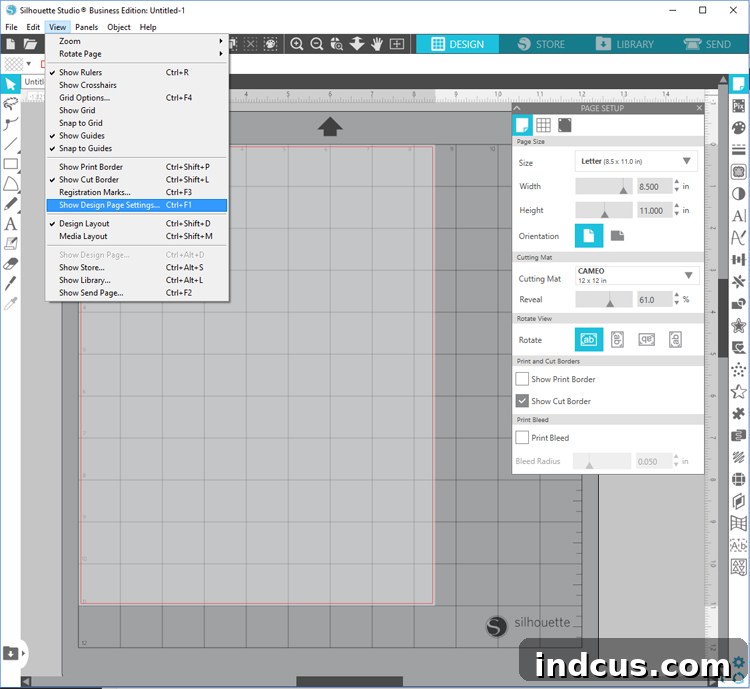
Begin by opening Silhouette Studio. Navigate to View > Show Design Page Settings. This panel is crucial for setting up your virtual workspace to accurately match your physical materials. Here, you’ll want to adjust two key parameters:
- Adjust the Page Size to Letter (8.5″ x 11″): This setting tells the software the exact dimensions of your printable vinyl sheet. Most printable vinyl comes in standard letter size, which is a widely available and convenient format.
- Adjust the Cutting Mat Size: Select the size of the cutting mat you’ll be using with your Silhouette machine. For most decal projects, the standard 12×12 inch mat is a versatile and commonly used choice, and it’s precisely what I utilized for these stand mixer decals. Ensuring these settings are correct prevents designs from going off the printable page or being cut incorrectly, saving you material and frustration.
Step 2: Import and Arrange Your Designs.
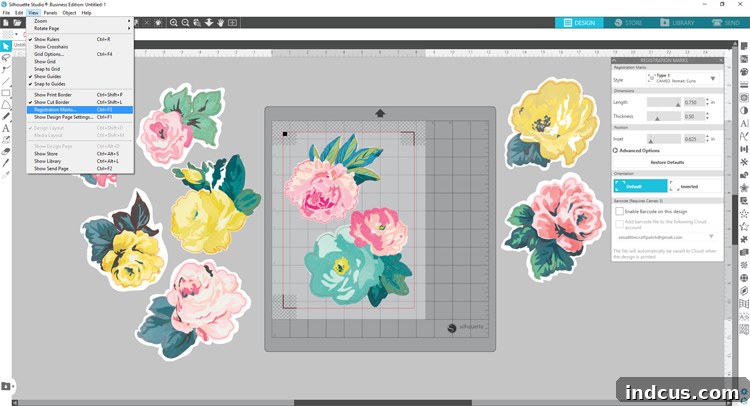
Access your design library and import the chosen flower designs (or whichever designs you’ve selected) onto your digital canvas in Silhouette Studio. Once imported, you’ll need to carefully adjust their sizes and positions. This is where you can visualize how they will look on your stand mixer. Arrange them strategically on the page to maximize your printable vinyl usage, ensuring all elements fit comfortably within the designated printable area. You have the freedom to group smaller elements together, rotate them for optimal placement, and scale them up or down to achieve the desired effect for your final custom stand mixer decals. Think about the overall composition and how the various designs will interact on the mixer’s surface.
Step 3: Enable and Adjust Registration Marks.
Registration marks are an absolutely critical component for any “Print & Cut” project. They are small, specialized guides that your Silhouette machine’s optical scanner reads to precisely determine the exact location and orientation of your printed designs, ensuring that the blade cuts exactly where it should. To enable them, go to View > Registration Marks. On the right-hand side of your screen, a new panel will appear with registration mark settings. Under the “Style” dropdown, choose “Type 1.” While Silhouette Studio offers options to adjust the placement, length, and thickness of these marks, the standard settings are usually robust and work perfectly for most projects. It is vital to ensure that none of your design elements overlap with these registration marks, as this could prevent the machine from reading them correctly and result in misaligned cuts.
Step 4: Print Your Designs onto Printable Vinyl.
Now it’s time to bring your digital creations to life! Carefully load your Silhouette printable vinyl sheets into your inkjet printer. This step is critical: always double-check that you are loading the vinyl in the correct direction for printing. The side you want to print on is the smooth, slightly glossy surface where the ink will adhere most effectively. A simple trick if you’re unsure which side is printable is to gently peel up a corner of the sheet; the sticky, adhesive side is the front, and that’s the side you should print on. For the best possible results, select the highest print quality setting available on your printer and choose a “photo paper,” “glossy paper,” or “specialty paper” media type if those options are present. This will ensure vibrant colors and crisp, sharp details on your custom stand mixer decals.
Step 5: Seal the Printed Vinyl (Crucial for Durability!).
This step is paramount and cannot be skipped, especially for decals destined for a kitchen environment! Because your stand mixer will undoubtedly be exposed to steam, incidental splashes, and general kitchen moisture, the inkjet ink on your printable vinyl needs robust protection. Without sealing, the ink could easily smudge, bleed, or fade over time, ruining your beautiful custom decals. Through careful experimentation, I discovered that spraying the printed design before cutting yields the best, most professional, and most durable results. I used Rustoleum Clear Coat for this purpose, which provides an excellent and resilient protective layer. When applying, ensure you are in a well-ventilated area, and hold the can about 10-12 inches away from the vinyl sheet. Apply several light, even coats, allowing each coat to dry completely to the touch before applying the next. This typically takes only a few minutes between coats. For optimal curing and maximum durability, let the final coat of sealant cure for at least 30 minutes to an hour (or even longer if possible) before proceeding to the cutting step. (Pro Tip: While I’ve linked to Rustoleum Clear Coat on Amazon for visual reference, it is often significantly overpriced there due to shipping. You can usually find this essential clear coat for around $3-$5 at your local hardware store or large retail outlets like Walmart, so definitely check those options first for significant savings!)
Step 6: Cut Your Decals with the Silhouette Cameo.
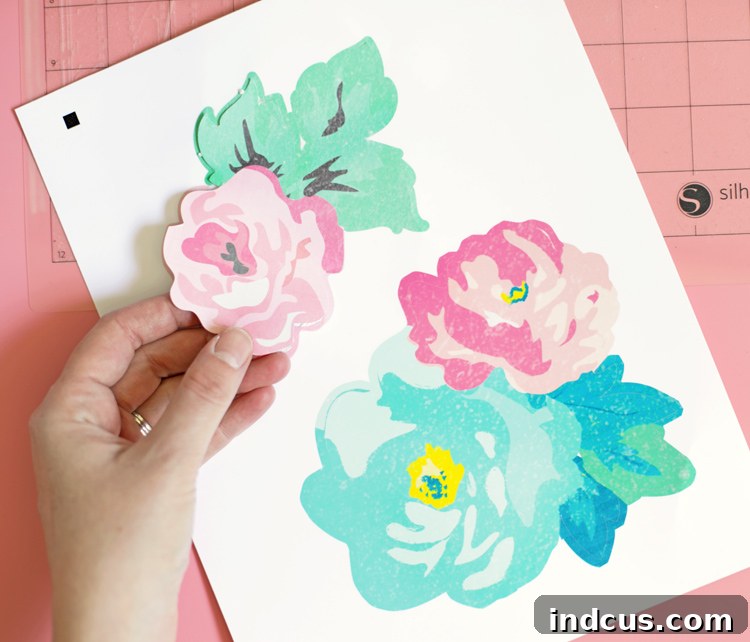
Once your sealed printable vinyl is thoroughly dry and cured, carefully place the sheet onto your Silhouette cutting mat. Ensure it is aligned precisely with the top-left corner as indicated in Silhouette Studio. Load the mat securely into your Silhouette Cameo machine. In Silhouette Studio’s “Send” panel, select “Printable Vinyl” as your material type. It’s always a good practice to perform a test cut (a small square or circle in an inconspicuous area of your vinyl) to ensure your blade settings, force, and speed are perfectly calibrated for your specific vinyl and machine before sending the full design. This prevents wasted material. Once satisfied with the test cut, click “Send” to initiate the cutting process. The machine will first scan the printed registration marks to ensure precise cutting around all of your custom stand mixer designs.
Step 7: Apply Your Custom Decals to Your Mixer.
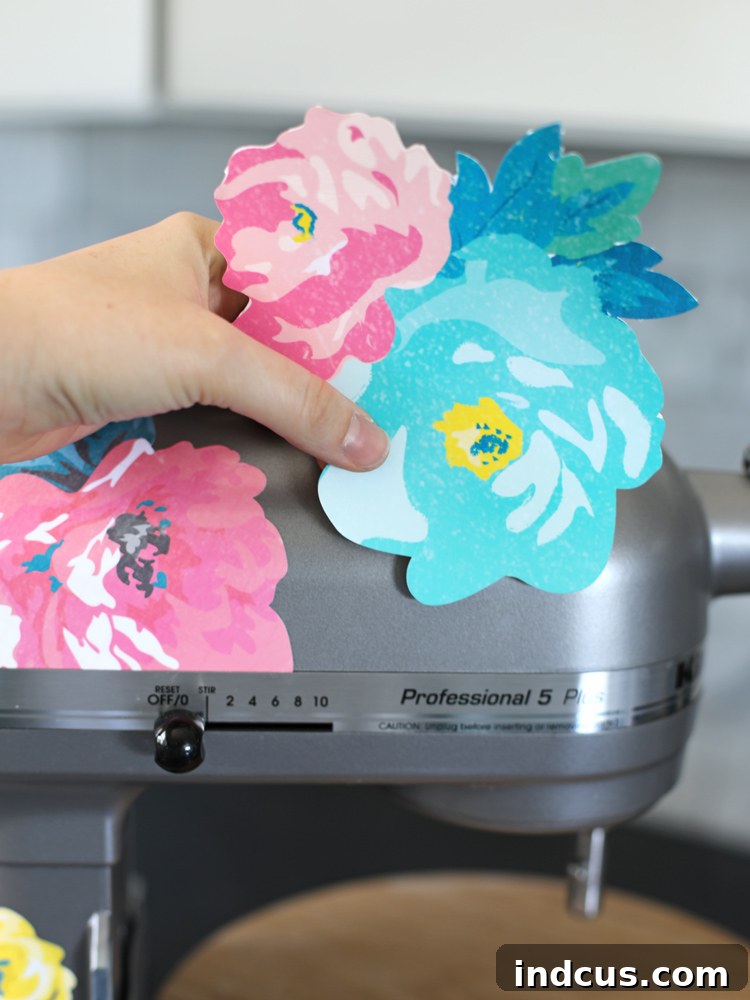
With your designs perfectly cut and sealed, the final and most satisfying step is applying them to your stand mixer. Carefully peel each individual cut decal off its backing paper. When placing them, start from one edge of the decal and gently smooth it down onto the mixer’s surface, working outwards to push out any potential air bubbles. You can use a craft squeegee or even a credit card wrapped in a soft cloth to help with this smoothing process, ensuring excellent adhesion. While printable vinyl is quite flexible, I found it best to strategically avoid the heavily rounded or sharply curved areas of the mixer. Trying to get the vinyl to lay perfectly smooth over very tight curves can be tricky and may result in wrinkles or lifted edges over time. Instead, focus on the flatter or gently curved surfaces where the decals can adhere seamlessly. With a little careful planning and strategic placement, you can still achieve a stunning, cohesive look that enhances your mixer’s aesthetics beautifully without encountering frustrating application issues.
Your Beautifully Customized Stand Mixer!
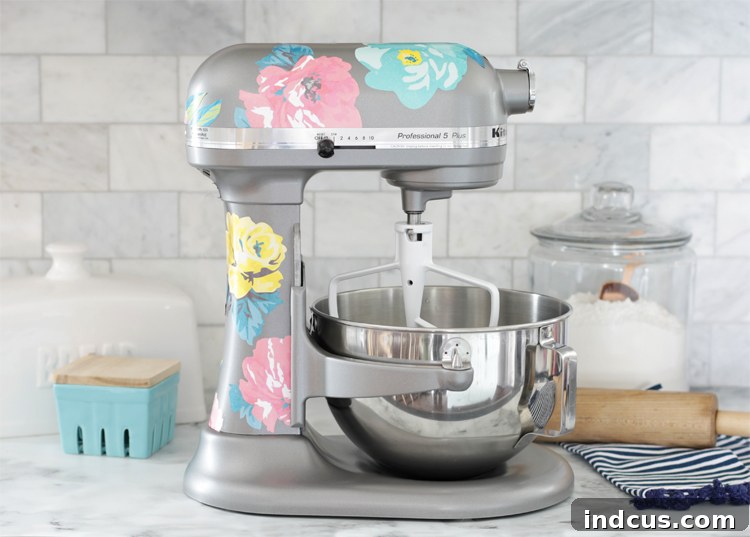
And just like that, your plain stand mixer has been transformed into a unique piece of kitchen art! My KitchenAid now looks wonderfully fancy, bursting with personality, and absolutely reflects my personal style. The fun pop of vibrant color from these custom floral decals brings such joy and visual interest every time I step into the kitchen. It’s truly amazing how a simple, creative DIY project can make such a significant difference in the feel and overall personality of your culinary space, making it even more inviting and inspiring.
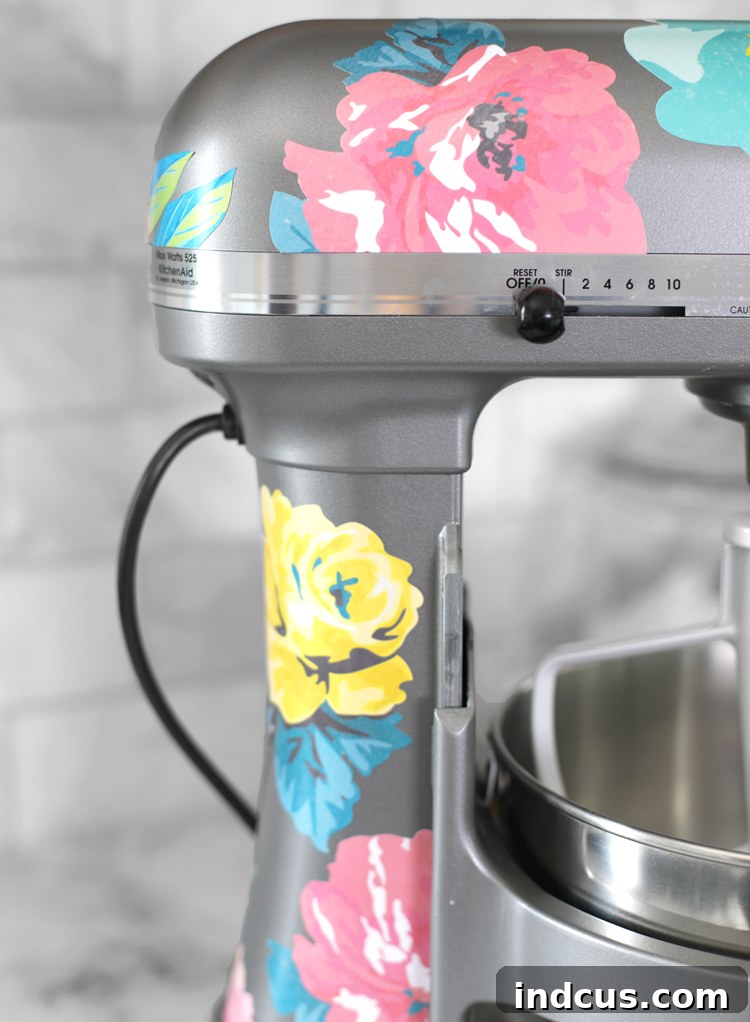
The chosen floral patterns perfectly complement the existing color scheme and decor in my kitchen, creating a harmonious and inviting atmosphere that feels truly bespoke. But here’s the absolute best part: the temporary and easily changeable nature of these printable vinyl decals. Should my home decor tastes shift in the future, or if I want to embrace a new trend or seasonal theme, I can effortlessly peel off these decals and replace them with a completely fresh design. Imagine adorning your mixer with festive holiday-themed decals for Christmas, charming autumn leaves for Thanksgiving, or vibrant spring patterns to welcome the new season! The possibilities for endless customization are truly exciting, allowing your stand mixer to gracefully evolve with your style and keep your kitchen looking fresh and up-to-date year-round.
Unleash Your Creativity: Endless Possibilities for Mixer Customization
This project is just the beginning of what you can achieve with printable vinyl and your Silhouette machine. Beyond floral designs, consider the vast array of creative possibilities to truly personalize your stand mixer:
- Monograms: Add your initial, a family monogram, or a significant date for a sophisticated and timeless touch that makes your mixer distinctly yours.
- Geometric Patterns: Create modern, sleek, and minimalist designs that complement a contemporary kitchen aesthetic. Think stripes, chevrons, or abstract shapes.
- Seasonal Themes: Easily swap out decals for every major holiday or season. Imagine spooky Halloween designs, cozy autumn leaves for Thanksgiving, festive winter motifs for Christmas, or cheerful pastels for Easter – your mixer can always be in theme!
- Themed Kitchens: If you have a specific kitchen theme (e.g., farmhouse, retro diner, minimalist, coastal), create decals that perfectly align with it, enhancing the overall cohesion of your decor.
- Personalized Gifts: Customize a stand mixer with unique decals for a wedding present, housewarming gift, or birthday surprise – it’s a thoughtful, unique, and truly memorable gesture that shows you care.
The ease of making and applying these printable vinyl decals means you’re never stuck with just one look. Your stand mixer can become a dynamic canvas that changes with your mood, the seasons, or your evolving interior design choices. It’s a wonderful, accessible way to keep your kitchen feeling fresh, personal, and uniquely “you,” reflecting your creativity in every delicious creation.
We hope you loved this inspiring project and are excited to personalize your own stand mixer! Why not pin it now so you don’t forget these fantastic DIY stand mixer customization ideas? Happy crafting and happy baking!