Unleash Your Creativity: Mastering Felt Cutting with the Silhouette Cameo 4 Rotary Blade & Crafting Adorable Stuffed Animals
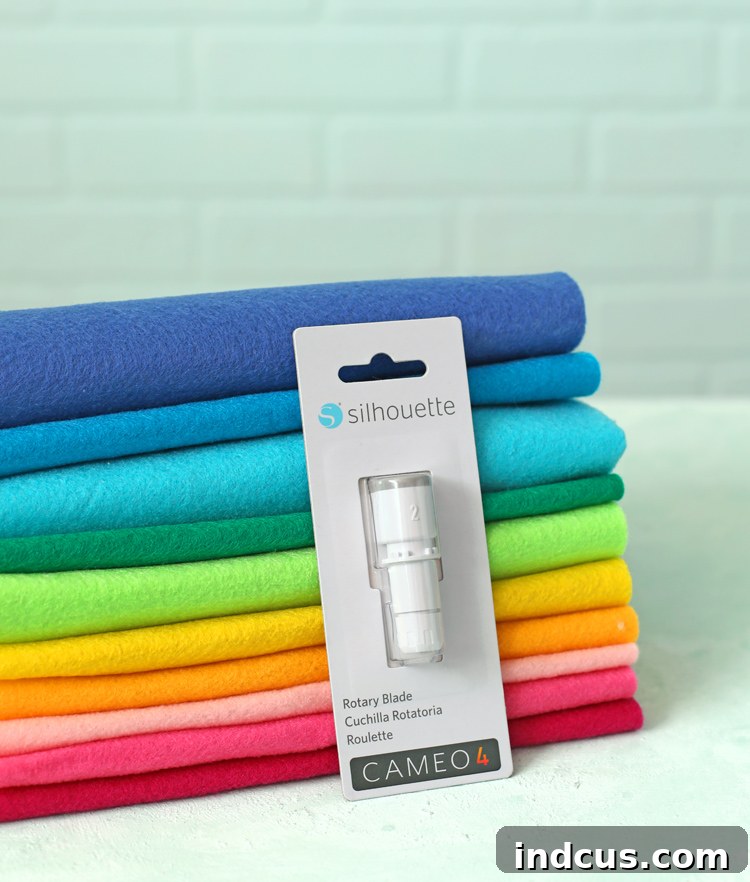
For craft enthusiasts and DIY creators alike, the arrival of a truly innovative tool can reignite passion and open doors to endless project possibilities. Today, we’re diving deep into one such game-changer: the Silhouette Cameo 4 Rotary Blade. This isn’t just another accessory; it’s a revolutionary tool designed to transform how you approach fabric and felt projects, promising unparalleled precision and efficiency. If you’ve ever dreamt of effortlessly cutting intricate felt designs, preparing custom fabric pieces for sewing, or bringing unique stuffed animal patterns to life with professional-grade accuracy, then you’re in for a treat.
I must confess, despite my initial excitement upon acquiring the rotary blade a few weeks ago, a slight apprehension held me back. New tools, especially those that promise groundbreaking capabilities, can sometimes feel intimidating. However, I’ve now taken the plunge, and I am absolutely thrilled to share that the experience was not only far easier than anticipated but genuinely delightful. The machine performed flawlessly, delivering perfect cuts with zero frustration. My mission today is to demystify this powerful tool and guide you, step-by-step, through your first successful felt-cutting endeavor. Together, we’ll conquer the rotary blade and unlock its incredible potential for all your crafting aspirations.
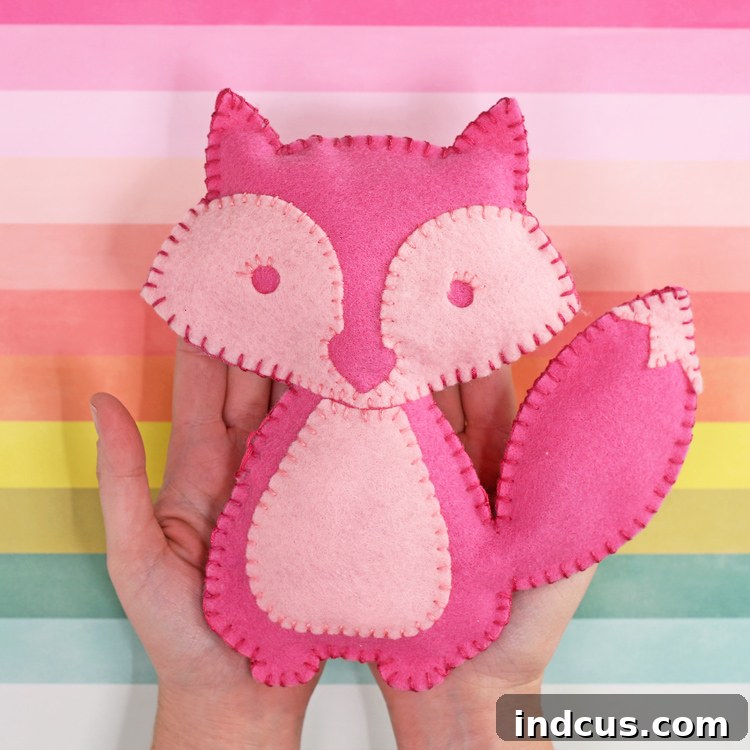
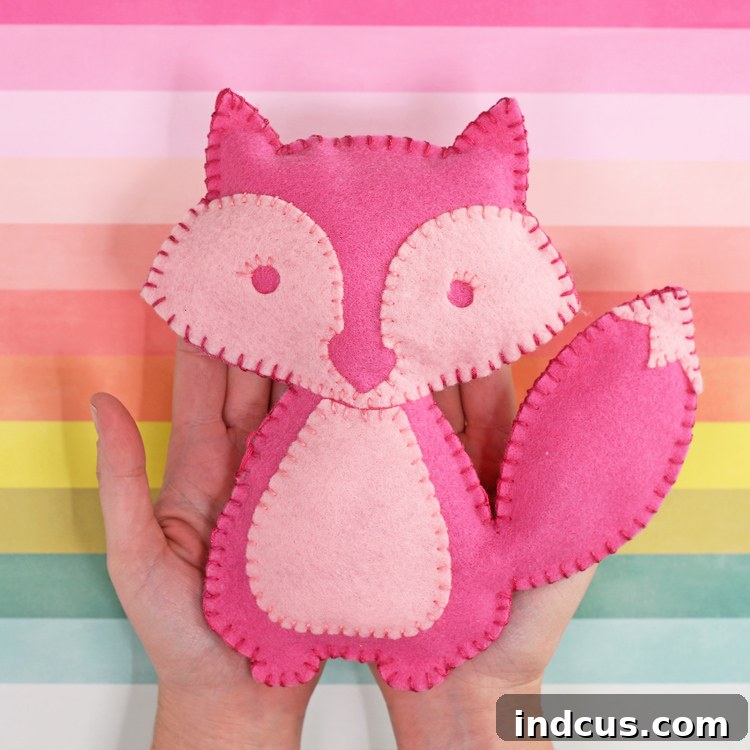
To celebrate our mastery of felt cutting, we won’t just stop at learning the technique. We’ll immediately put our newfound skills to use by crafting an utterly adorable project: a charming felt stuffed animal. Imagine transforming any animal cut file into a soft, cuddly companion with crisp, clean edges—all thanks to the precision of your Silhouette Cameo 4. This detailed tutorial will walk you through every stage, from setting up your machine to assembling your finished creation, ensuring a rewarding and enjoyable crafting journey. Let’s make this darling little felt fox together and witness the magic firsthand!
Mastering the Silhouette Cameo 4 Rotary Blade: A Step-by-Step Guide for Flawless Felt Cutting
The Silhouette Cameo 4 Rotary Blade is specifically engineered to cut delicate and challenging materials like felt, cotton, leather, and more without the need for a stabilizer. Its unique rolling action prevents dragging and tearing, resulting in clean, precise cuts every time. For those wondering where to acquire this essential crafting tool, it’s widely available. I personally picked up mine at Michaels using a gift card, but you can also find it directly on Silhouette’s official website or conveniently through Amazon. Having the right tools is the first step towards successful crafting, so let’s get started with its setup and usage.
Step 1: Preparing Your Rotary Blade for Optimal Performance
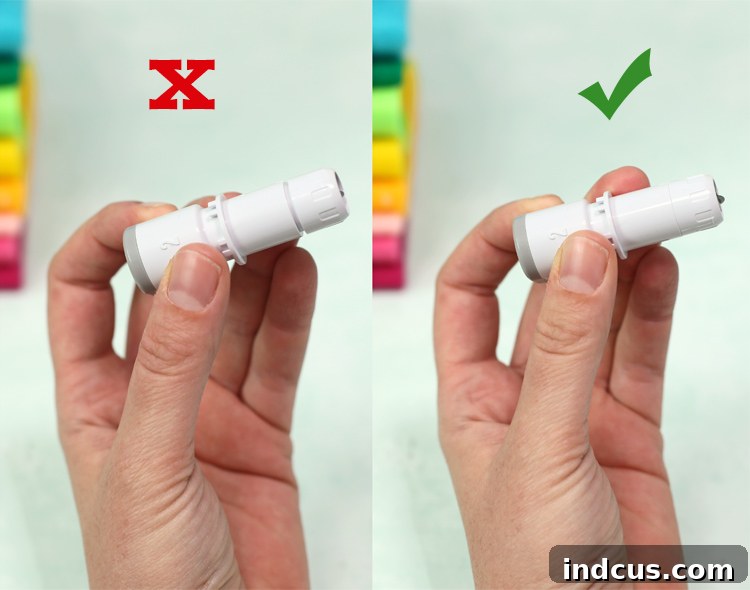
The very first action you’ll take after unboxing your new rotary blade is to ensure it’s correctly assembled and ready for cutting. Remove the blade from its packaging and pay close attention to the head of the blade. It’s crucial that the head is screwed down completely, flush with the rest of the blade housing. Take a look at the images provided: you’ll notice a small gap in the first picture, indicating the head isn’t fully tightened, whereas in the second, it sits perfectly flush. This seemingly minor detail is vital; a loose blade head will prevent the blade from cutting effectively and accurately. Trust me on this one – a few frustrating minutes of trial and error taught me the importance of this step! Ensure it’s tight before proceeding.
Step 2: Securing the Rotary Blade in Your Cameo 4 Machine
The Silhouette Cameo 4 boasts a dual-carriage system, a feature that significantly enhances its versatility, allowing you to use two different tools simultaneously. For the rotary blade, you’ll be utilizing the second tool chamber. Gently unlatch the second carriage (the one on the right) and carefully insert the prepared rotary blade. Push it down until it clicks securely into place, then close the latch. A firm click confirms that the blade is properly seated and ready to receive instructions from your software.
Step 3: Crafting Your Design in Silhouette Studio
With your hardware ready, it’s time to move to the digital workspace: Silhouette Studio. This powerful software is your command center for creating and preparing designs for cutting. Follow these essential steps to set up your felt project:
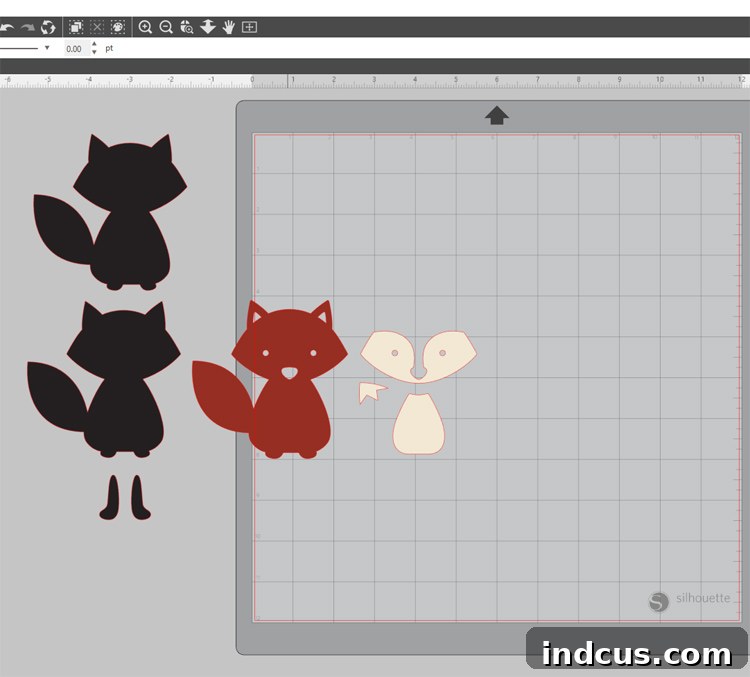
- Selecting Your Cut File: Begin by opening the cut file of your choice. The Silhouette Design Store offers an incredible array of options. For this tutorial, I selected this charming fox design, but the possibilities are truly endless. Simply search for your desired animal—or any other shape you wish to cut from felt. Most basic cut files are incredibly affordable, often around just $1, making it easy to experiment and expand your design library!
- Customizing Your Design: Once your file is open, you’ll likely need to ungroup the various components. This allows you to manipulate individual elements of the design. Remove any parts you don’t intend to cut; for instance, I opted not to use the small orange piece or tiny leg details from the fox design, simplifying the project.
- Arranging for Cutting: Resize the remaining pieces to your desired dimensions and arrange them efficiently on your virtual cutting mat within Silhouette Studio. Remember a key principle for felt projects: you’ll typically cut one color of felt at a time. For stuffed animals, you’ll need two main body pieces—a front and a back—to sew together, so plan to cut duplicates of these foundational shapes. This organized approach streamlines your material usage and ensures you have all necessary components.
Step 4: Configuring Cut Settings in the Send Panel
Once your design is perfectly laid out, navigate to the “SEND” tab located in the top right corner of Silhouette Studio. This panel is where you finalize all your cutting parameters. Within the Send panel, click on the “LINE” tab. Here, you’ll manage which tool is active and specify your material settings:
- Tool Selection: Ensure the box for the first tool carriage is unchecked (as it’s empty), and crucially, check the box for the second tool carriage, which now holds your rotary blade. This tells the machine which blade to activate.
- Material and Action Settings: Utilize the scroll-down menus to precisely select your material (e.g., “Felt, Wool Blend”), the action you wish to perform (“Cut”), and the tool (“Rotary Blade”). These selections are paramount for achieving optimal cut quality.
For a visual reference, here’s a screenshot of my precise settings. I highly recommend mirroring these to ensure a successful first cut:
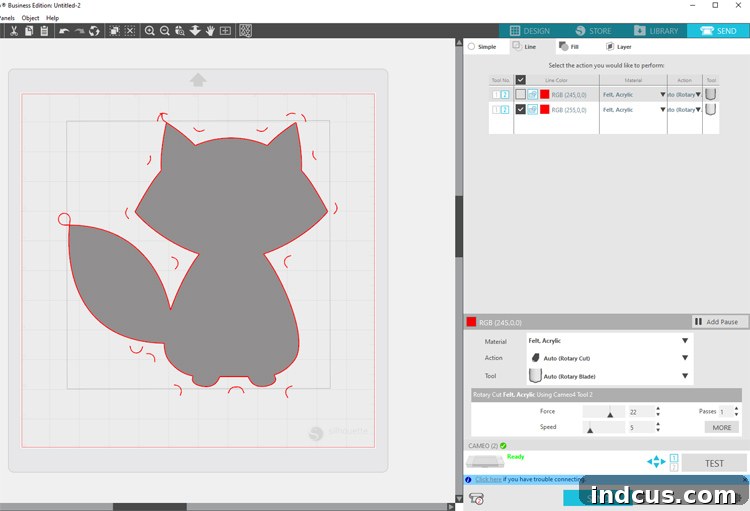
Understanding the Rotary Blade’s “Thinking Path”: After selecting the rotary blade, you might notice your design suddenly displays additional swirls and lines around its edges. Do not be alarmed! These aren’t actual cut lines. They represent the “thinking path” or tool path that the rotary blade follows. Because a rotary blade rolls, it needs these subtle extensions to properly turn corners and execute precise cuts without lifting or dragging. This intelligent path ensures your project is cut flawlessly, even with intricate details.
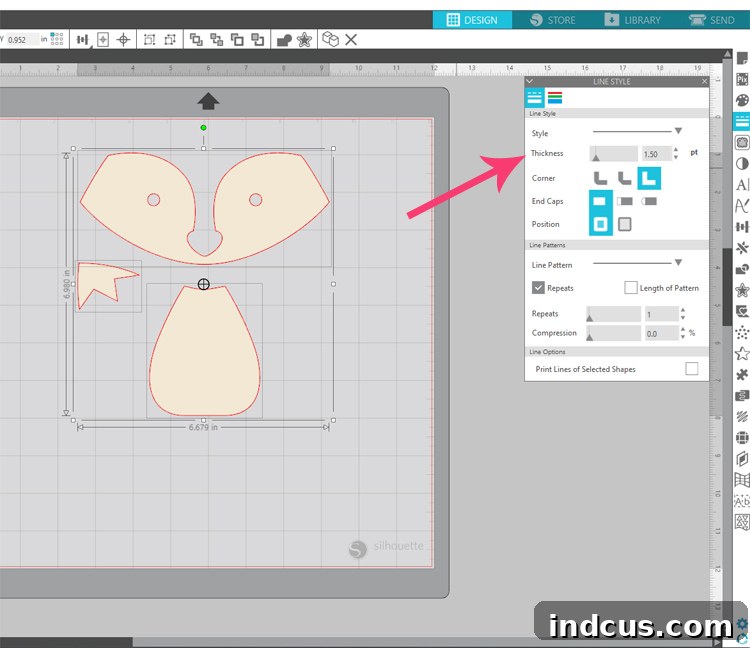
A Quick Troubleshooting Tip: During one of my initial cuts, I encountered an issue where the machine didn’t seem to “see” the lines of my particular cut file, as they were unusually thin. This is an easy fix if it ever happens to you. Simply open the line settings within Silhouette Studio and increase the thickness of the lines. This makes the design more apparent to the machine’s sensors, and you’ll be back to cutting in no time. This small adjustment can save you a lot of head-scratching!
Step 5: Preparing Your Cutting Mat with Felt
With your design and settings finalized, it’s time to prepare your physical materials. Carefully center a piece of felt onto your cutting mat. The success of your cut heavily relies on the felt being firmly adhered to the mat to prevent shifting. Press the felt down thoroughly, ensuring there are no air bubbles or loose areas. If your cutting mat is older and its adhesive has started to wane, a simple trick is to use masking tape along the edges of the felt to provide extra security. However, I was pleasantly surprised by how well my moderately used, standard cutting mat held the felt in place without any additional tape, delivering pristine results. A fresh, sticky mat is always ideal, but don’t hesitate to improvise if needed.
Step 6: Initiating the Cutting Process
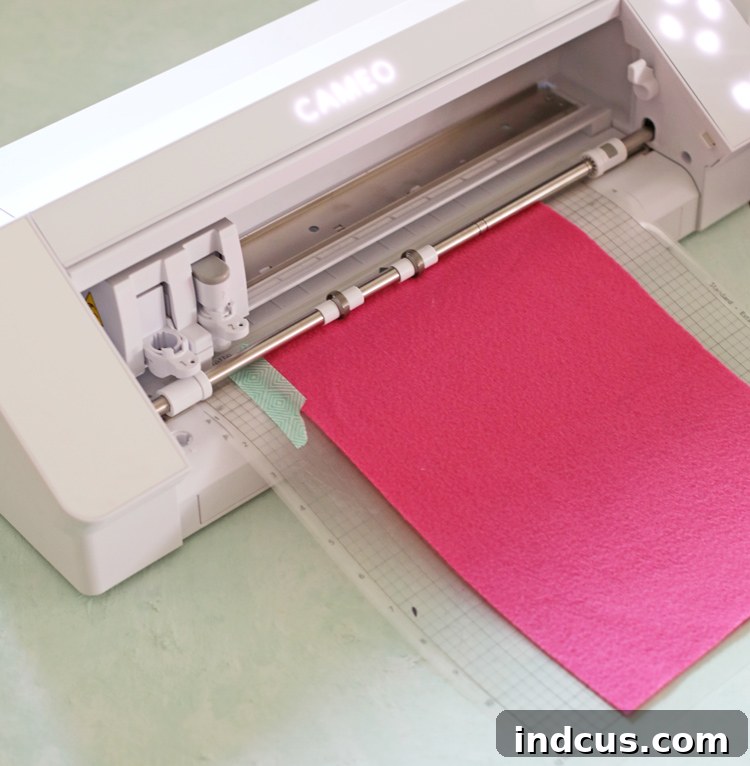
Now for the exciting part! Load your prepared cutting mat into the Silhouette Cameo 4 machine, ensuring it aligns correctly with the guides. Once loaded, return to Silhouette Studio and press the “SEND” button to begin the cutting process. It’s often beneficial to remain near your machine during its first few cuts, just to observe its operation. On one occasion, I noticed a very slight snagging along an edge; a quick pause of the machine allowed me to smooth down the felt, and then I resumed the cut without issue. This single, minor hiccup across three separate cuts speaks volumes about the rotary blade’s reliability and the overall smooth experience. I truly couldn’t be more pleased with how seamlessly this process unfolded, far exceeding my initial expectations for cutting fabric with a digital machine!
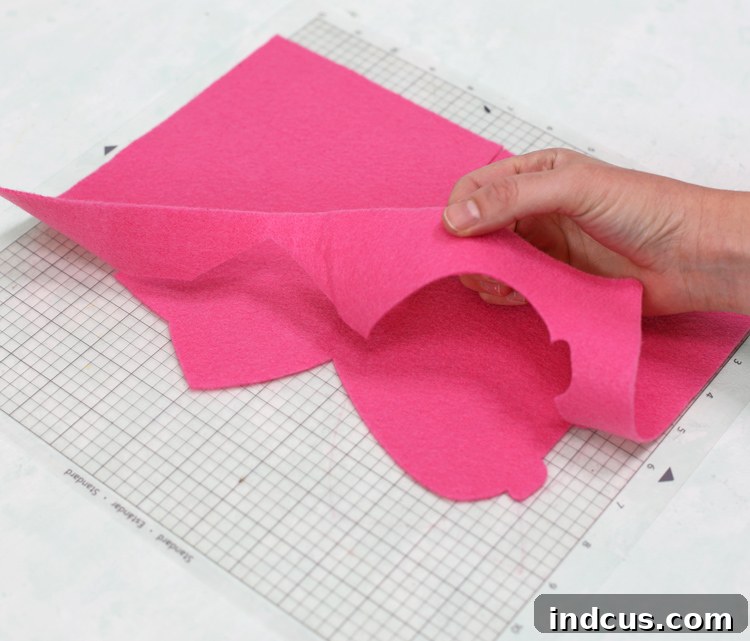
As the cutting concludes, you’ll find yourself eagerly peeling back the felt from the mat. The sight of perfectly cut felt shapes, crisp and clean along every edge, is truly a moment of pure joy for any crafter. My heart practically swelled with satisfaction as I watched the felt effortlessly separate. Imagine my giddy squeals of delight – this machine is a dream come true for felt projects! Now that you have these beautifully cut felt pieces, let’s move on to transforming them into an adorable finished project.
Crafting Your Own Adorable Felt Stuffed Animal: A Delightful DIY Tutorial
Creating a charming felt stuffed animal is a rewarding project, made exponentially easier and more precise thanks to the Silhouette Cameo 4 Rotary Blade. Gone are the days of tedious hand-cutting and uneven edges; now, you can focus purely on the joy of assembly. This section will guide you through turning your perfectly cut felt pieces into a cuddly companion.
Step 1: Assembling All Your Precisely Cut Pieces
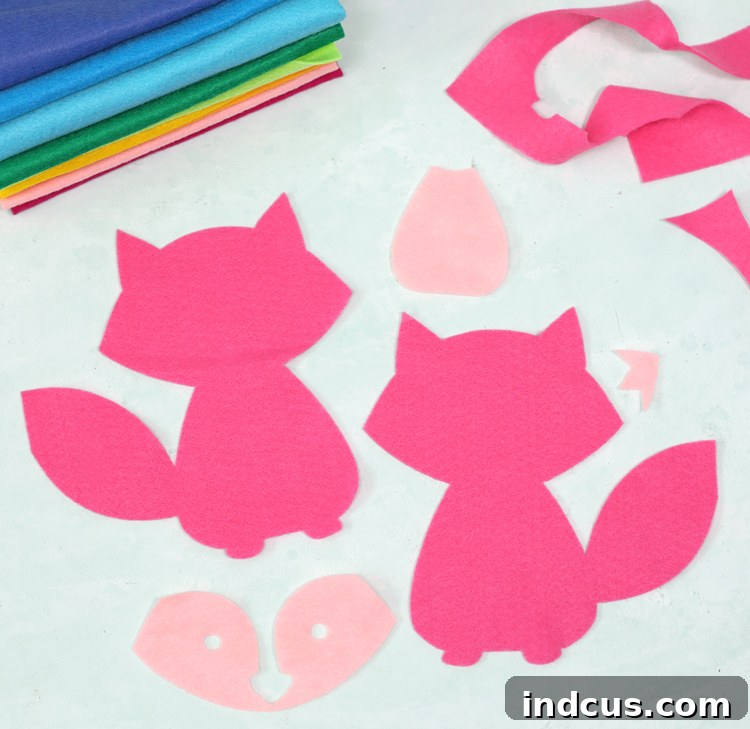
The foundation of any great stuffed animal is perfectly cut pieces. If you’ve followed the steps above using your Silhouette Cameo 4, this stage will be incredibly swift and satisfying. Your shapes will emerge from the cutting mat with unparalleled crispness, precision, and beauty—a stark contrast to the often tedious and less accurate results of hand-cutting. Lay out all your cut felt pieces, ensuring you have the front and back body sections, as well as any smaller details like ears, snouts, or decorative elements. This quick and accurate cutting process truly highlights the power and efficiency of your machine, allowing you to jump straight into the fun of creation.
Step 2: Expertly Stitching Internal Layers and Details
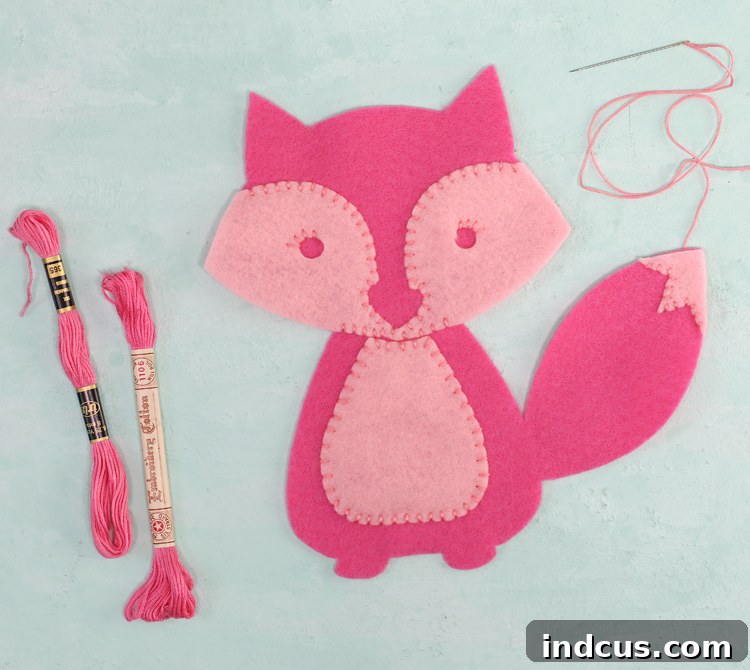
Before joining the main body pieces, it’s essential to stitch down any internal layers or decorative elements onto the front piece of your stuffed animal. For our adorable fox, this involved attaching the lighter pink snout and ear details. Select a coordinating embroidery floss that complements your felt colors. Using a simple running stitch or a neat whip stitch, carefully sew these smaller pieces onto the main front body section. A crucial tip here is to only stitch the inner edges of these layered pieces. The outer edges will be secured later when you stitch the front and back body pieces together. This technique ensures a clean finish and avoids visible stitches where they aren’t intended. Pay attention to symmetry and placement for the best aesthetic result.
Step 3: Stuffing and Final Assembly for a Cuddly Finish
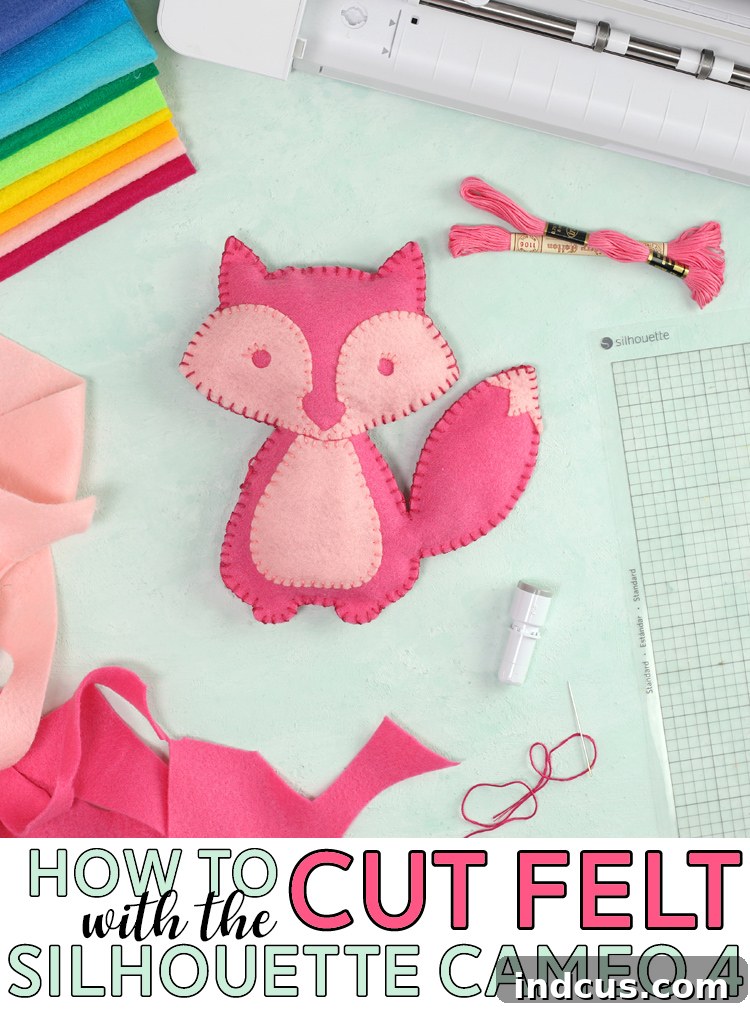
With all your internal details stitched, it’s time to bring your felt animal to life by adding stuffing and completing the final assembly. Place the front and back felt pieces together, aligning them perfectly. Begin stitching around the perimeter of your animal using a blanket stitch or a tight whip stitch, which creates a durable and decorative edge. As you stitch, gradually add your stuffing. I find it most effective to stuff as you go, particularly for smaller, harder-to-reach areas like tails, ears, or limbs. This ensures even distribution and prevents your animal from looking lumpy or under-filled. High-quality polyester fiberfill is ideal for a soft, pliable, and resilient toy. Don’t be shy with the stuffing; generally, more is better for a truly huggable and well-formed stuffed animal. Continue stitching and stuffing until you have gone all the way around the perimeter, leaving no gaps. Once you secure your final stitch, your charming felt stuffed animal is complete!
Isn’t my little pink fox just the absolute cutest creation? I crafted her with love for my seven-year-old daughter, but even my often-stoic teenager couldn’t resist exclaiming, “MOM! That’s reeeeeaaaaallllly cute!” I definitely count that as a significant win! The joy of seeing your handmade creation bring smiles is truly unmatched.
Reflecting on past projects, I recall spending nearly two months meticulously hand-cutting felt ornaments for a cherished Christmas advent calendar for my family. I’ve also poured hours into creating several beloved felt quiet books and an intricate interactive felt paper doll. Every single one of those projects would have been completed exponentially faster and with greater precision if I had the Silhouette Cameo 4 Rotary Blade back then. The manual cutting, especially for small and complex shapes, was incredibly time-consuming and often led to hand fatigue. With the rotary blade, what once took hours of careful snipping can now be accomplished in mere minutes with machine-perfect accuracy. It’s not just a convenience; it’s an absolute game-changer for fabric and felt crafters. Hurray for awesome, innovative crafting technology that makes our creative lives so much easier and more enjoyable!
Love this project? Don’t let it slip away! Pin this tutorial to your favorite crafting board so you can easily find it for future creative endeavors.
Disclaimer: This post is proudly sponsored by Silhouette America. My participation involved creating this wonderful project, capturing detailed photographs, and sharing these comprehensive instructions with you. Sponsored content plays a vital role in keeping this blog running and allowing me to continue sharing creative ideas and tutorials. My sincere thanks go to Silhouette for their invaluable support, enabling us to explore and share cutting-edge crafting innovations.