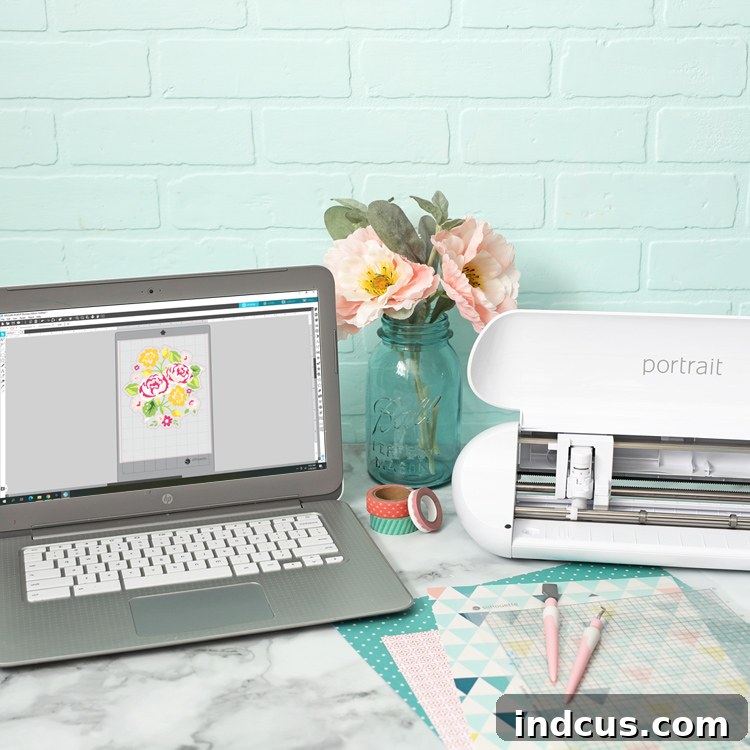
Unlock Your Creative Potential: Essential Silhouette Studio Tips and Tricks for Every Crafter
If you own a Silhouette machine, you’re holding the key to a world of endless crafting possibilities. But to truly unlock that potential and transform your design visions into reality, mastering Silhouette Studio is essential. This comprehensive guide is dedicated to sharing invaluable shortcuts, clever hacks, and practical tips designed to streamline your workflow and elevate your crafting experience.
Having spent countless hours navigating the intricacies of this powerful design software, I’ve gathered a treasure trove of helpful tricks that I’m excited to share with you today. From beginners seeking clarity to seasoned crafters looking for efficiency boosts, these insights will make your design process smoother and more enjoyable. And for those who prefer visual learning, don’t worry – a detailed video tutorial with step-by-step screenshots is included to ensure you can confidently apply every tip.
This post is brought to you in partnership with Silhouette America, a leader in personal electronic cutting tools.
What is Silhouette Studio?
Silhouette Studio is much more than just software; it’s the intuitive design hub that powers your Silhouette electronic cutting machine. It serves as the bridge between your creative ideas and the physical cuts made by your machine. When you invest in a Silhouette machine – whether it’s a Cameo, Portrait, Curio, or Mint – the initial setup instructions will guide you through the seamless process of downloading and installing this essential software. From simple shapes to intricate multi-layered designs, Silhouette Studio provides all the tools you need to prepare your projects for cutting, sketching, embossing, and more.
Understanding the software is the first step towards transforming raw materials like vinyl, cardstock, fabric, and specialty papers into stunning personalized items, home decor, apparel, and gifts. It’s where you’ll design, modify, and arrange every element before sending it to your Silhouette machine for precise execution.
Which Version of Silhouette Studio Should I Use?
Silhouette Studio offers four distinct versions, each tailored to different user needs and skill levels: Basic Edition, Designer Edition, Designer + Edition, and Business Edition. Choosing the right version can significantly impact your crafting experience and the types of projects you can undertake.
The **Basic Edition** is the free, entry-level version that comes with every Silhouette machine. It’s an excellent starting point for beginners or those who primarily focus on cutting pre-designed files from the extensive Silhouette Design Store. It provides fundamental tools for basic drawing, text manipulation, and simple editing. If you’re contemplating between a Silhouette and a Cricut machine, downloading the free Basic Edition software is a smart move – it allows you to explore its interface and capabilities before making a commitment.
However, for crafters looking to expand their creative horizons, the paid versions unlock a wealth of advanced features. The **Designer Edition** is popular among hobbyists and serious crafters, adding crucial capabilities like the ability to import SVG files, convert raster images into cuttable designs, and access more advanced rhinestone, sketch, and warp tools. The **Designer + Edition** further enhances this with features like Conical Warp and additional advanced design tools. Finally, the **Business Edition** is designed for users who plan to use their Silhouette machine for commercial purposes, offering multi-cutter support, true type font auto-weld, and advanced nesting features for efficient material usage.
To help you make an informed decision and determine which version best aligns with your crafting ambitions, you can compare all of the different editions of the Silhouette Studio software here. Investing in an upgraded version can pay dividends in terms of time saved, creative freedom, and professional output.
Now that we’ve covered the fundamentals, let’s dive into the game-changing hacks! These tried-and-true tips and tricks will empower you to navigate Silhouette Studio with greater ease, speed, and precision.
For a visual walkthrough of these tips, simply scroll down to watch the video tutorial.
Essential Silhouette Studio Hacks for Enhanced Productivity
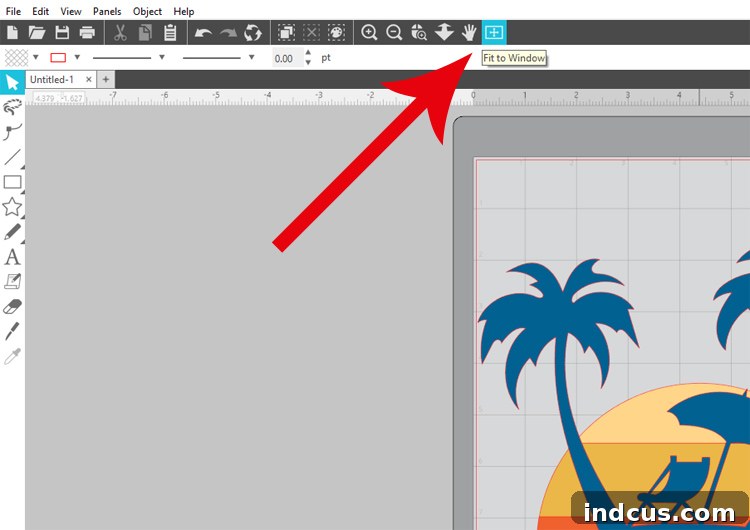
#1: Fit To Window – Instant Canvas Overview
Working on intricate designs often requires you to zoom in closely to manipulate fine details, align elements, or adjust minute parts of your project. This intense focus can sometimes leave you feeling lost when you need to view the entire mat. The “Fit To Window” hack is a lifesaver for quickly regaining your perspective. Instead of repeatedly clicking the zoom-out button or manually scrolling, you can instantly re-center your entire mat within the screen with a single click. This simple yet powerful feature, typically located as an icon in the top toolbar, allows you to immediately see your full design layout, ensuring you never lose sight of the bigger picture, no matter how deep you zoom in.
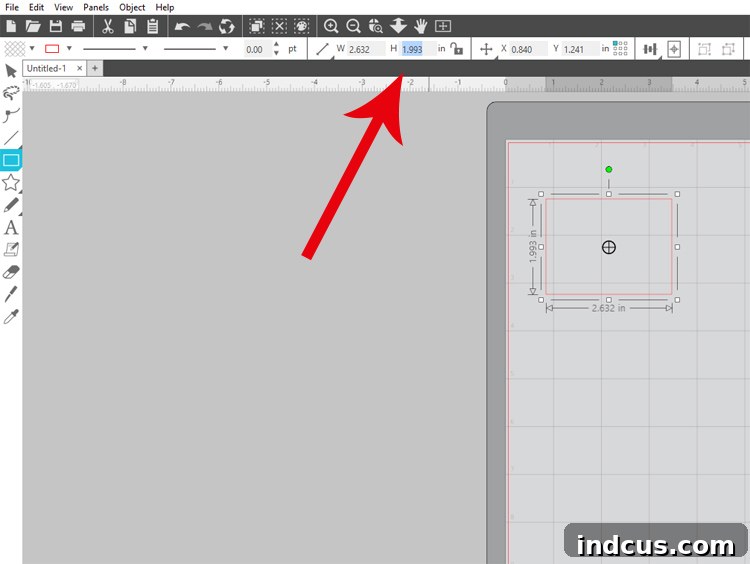
#2: Precise Shape Sizing – Achieve Perfect Dimensions
Have you ever struggled to drag a shape to achieve exact dimensions, frustrated by the lack of precision? This common challenge can lead to uneven designs and wasted material. Fortunately, Silhouette Studio offers a straightforward method for precise shape sizing. Begin by drawing the desired shape (e.g., a circle, square, or rectangle). While the shape is still selected and highlighted, direct your attention to the top toolbar above your work area. Here, you’ll find two input boxes specifically for width (W) and height (H). Simply type in your desired measurements, press Enter, and watch your shape instantly transform to the exact dimensions you need. This feature is invaluable for projects requiring accuracy, such as creating precise card layers, stencil cutouts, or custom labels, ensuring a professional and polished finish every time.
#3: Custom Media Size – Optimize Material Usage
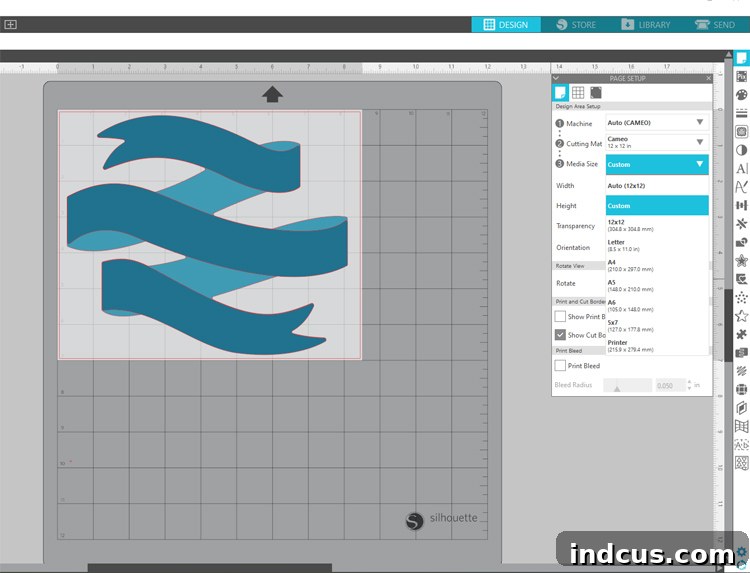
One of the recurring dilemmas in crafting is efficiently utilizing scrap materials. It can be challenging to eyeball if your design will fit perfectly on a leftover piece of paper or vinyl, often leading to wasted material or poorly cut projects. The “Custom Media Size” feature eliminates this guesswork. To activate it, navigate to the Page Setup window (usually found on the right-hand side). Under the “Media Size” dropdown, select “Custom.” Here, you can accurately input the precise width and height measurements of your scrap material. Once set, your virtual mat will reflect the custom dimensions, allowing you to meticulously resize and arrange your cuts to fit without fear of an edge being cut off. This not only saves precious materials but also boosts your confidence when working with unconventional material sizes.
#4: Test Cut – Prevent Costly Mistakes
Few things are as frustrating as cutting an entire page of vinyl or cardstock, only to discover that your cut settings were incorrect, resulting in a ruined project and wasted material. This common scenario can be incredibly disheartening and expensive. To safeguard against this, the “Test Cut” feature is an absolute must-use hack. Before committing to your main cut, feed your chosen material into your Silhouette machine as you normally would, either on a cutting mat or matless. Then, in the “SEND” window of Silhouette Studio, adjust your desired cut settings (blade depth, force, speed, passes) for your specific material. Instead of clicking “Send,” locate and click the “TEST CUT” button near the bottom of the panel.
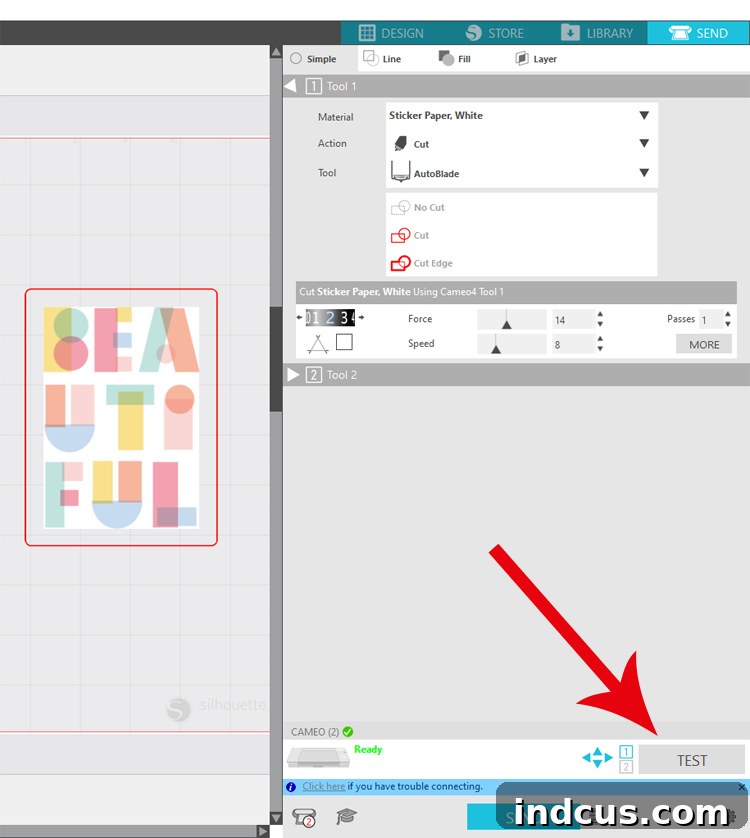
Your machine will then perform a small, inconspicuous test cut – typically a tiny square with a triangle inside – in the top left-hand corner of your material. Once the test cut is complete, carefully remove your material and examine the cut. Gently try to weed away the square from the triangle. If the cut is perfect, you’ll be able to remove the square cleanly, leaving the triangle perfectly adhered (or cut, depending on your material). If the cut is too shallow, too deep, or jagged, you can return to the “SEND” panel and make precise adjustments to your settings.
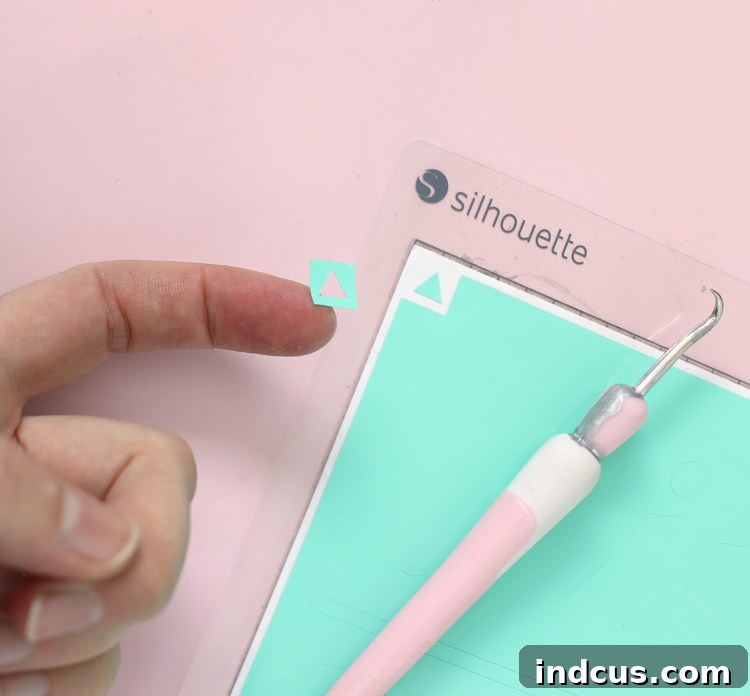
This simple test saves you from countless moments of frustration and significant material waste, especially when working with expensive or specialty media. Make the test cut a standard part of your workflow for flawless results every time!
#5: Keyboard Shortcuts – Supercharge Your Workflow
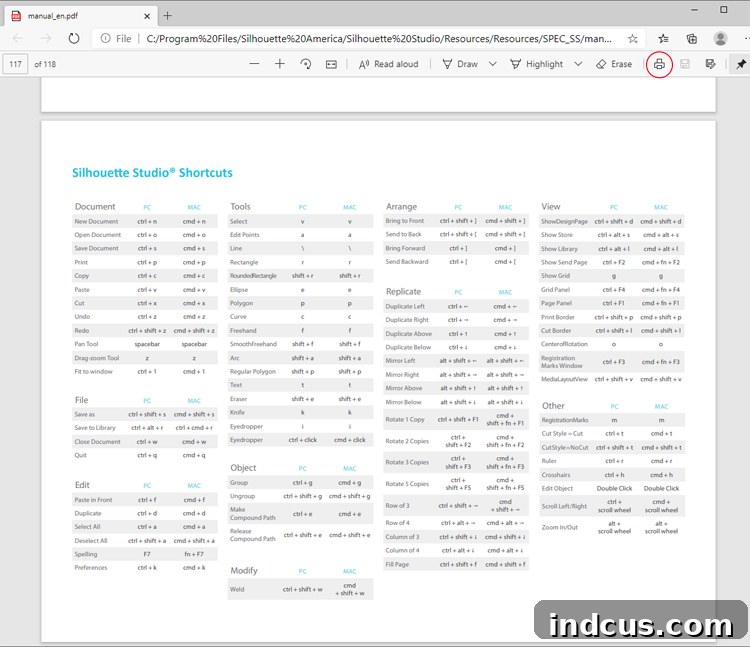
Most computer users are familiar with basic keyboard shortcuts like Control + S for Save or Control + P for Print. However, Silhouette Studio boasts an extensive array of keyboard shortcuts that can dramatically accelerate your design process and boost your productivity. Mastering these shortcuts means less time moving your mouse and more time designing.
To access this invaluable resource, navigate to the “HELP” menu within Silhouette Studio, then select “USER’S MANUAL.” Many users are unaware that a comprehensive user’s manual, complete with a dedicated section for shortcuts, is readily available right within the software – a true hack within a hack!
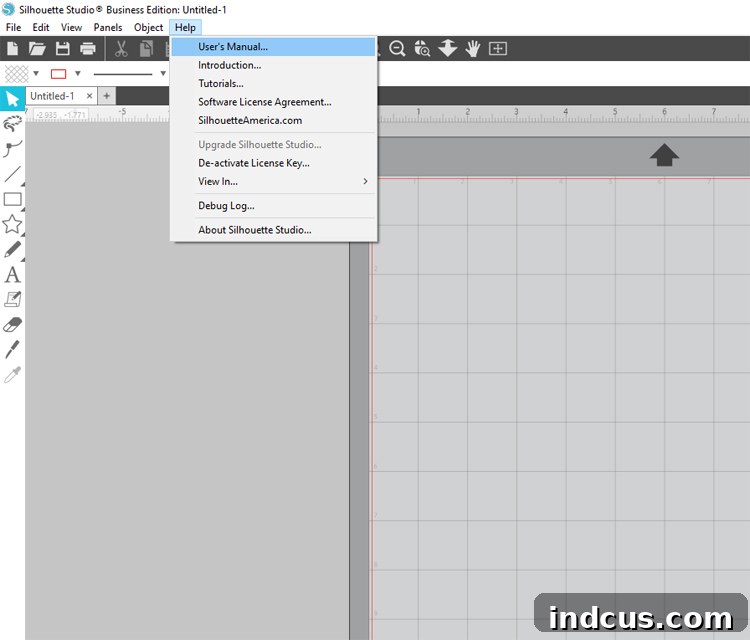
Once you’ve opened the user’s manual, scroll all the way to the very last page, and you’ll discover a detailed list of all available keyboard shortcuts. Print this “cheat sheet” out and keep it handy next to your machine. As you consistently refer to it while working, you’ll soon find yourself effortlessly grouping objects (Ctrl+G), ungrouping them (Ctrl+Shift+G), copying (Ctrl+C), pasting (Ctrl+V), duplicating (Ctrl+D), and undoing mistakes (Ctrl+Z) without breaking your creative flow. Becoming a keyboard shortcut ninja will undoubtedly transform your Silhouette Studio experience.
#6: Alignment and Spacing – Achieve Professional Layouts
Creating designs that feature multiple identical shapes or text elements often presents a challenge: how to ensure they are perfectly aligned and evenly spaced without tedious manual adjustments. Whether you’re making a series of circles for a garland, arranging multiple stars for a celestial design, or lining up text blocks, the automatic alignment and spacing tools in Silhouette Studio are indispensable for achieving a professional, polished look.
Start by duplicating the design elements you wish to arrange (e.g., copy and paste your desired shape). Next, select all of the images you want to align or space by clicking on an empty area of your canvas and dragging your mouse to create a selection box around all the relevant objects. Once selected, locate and click on the alignment panel icon, typically found on the right-hand side toolbar.
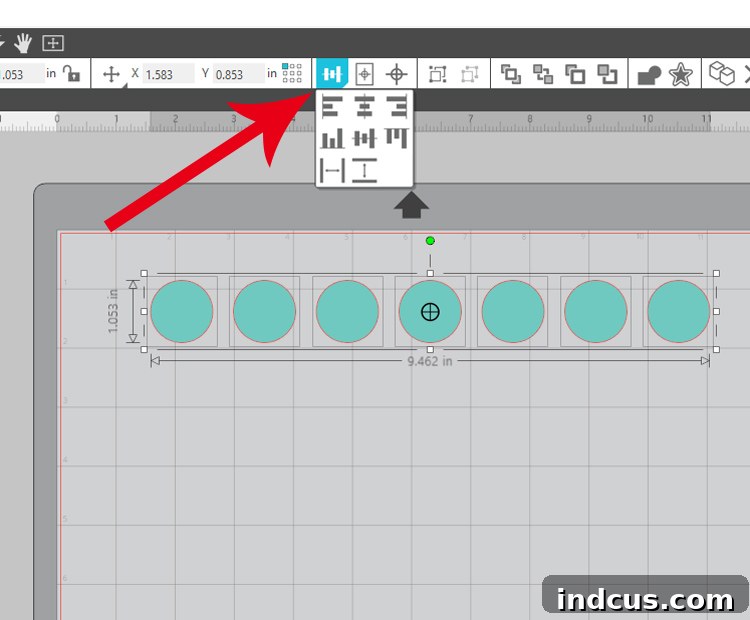
Within this panel, the first six buttons are dedicated to various alignment options (e.g., align top, bottom, left, right, center horizontally, center vertically), ensuring your selected elements line up flawlessly. The real magic happens with the bottom two buttons, which automatically space selected designs evenly, either horizontally or vertically. To use this effectively, simply place your first and last elements roughly where you want them, then select all the elements in between, and click the appropriate spacing button. All your selected designs will then be perfectly distributed, saving you considerable time and ensuring visually appealing, symmetrical layouts for all your projects.
#7: Explore All The Buttons and Tabs – Unlock Hidden Features
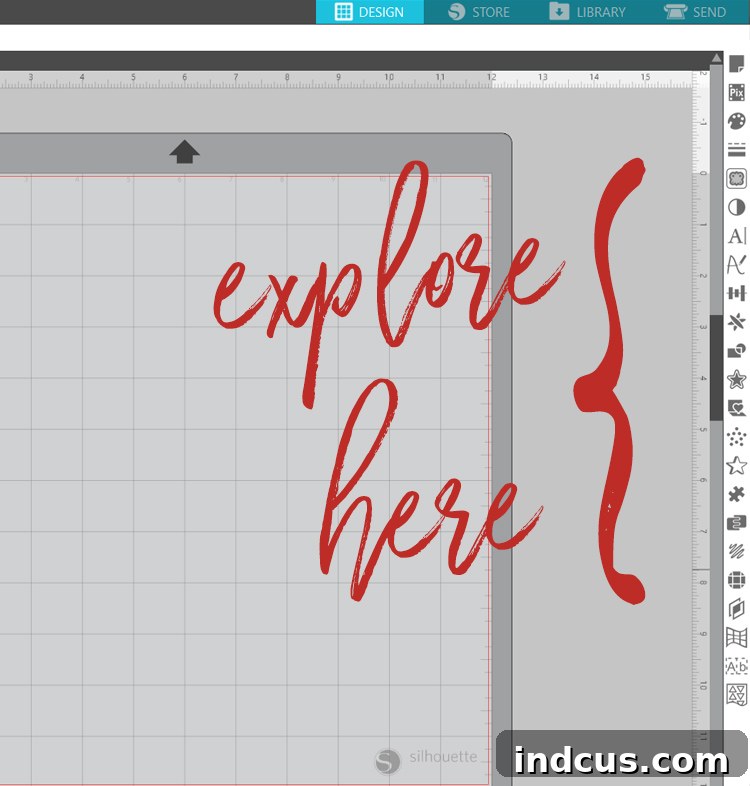
While this article covers some of the most impactful tips, the true depth of Silhouette Studio’s capabilities is vast and continuously evolving. My final, and perhaps most crucial, piece of advice for any Silhouette user is to dedicate time to simply exploring. Spend some moments clicking around on each of the tab options located on the right-hand side of the software interface. These panels house a multitude of powerful tools, effects, and settings that can transform your designs in unexpected ways.
You’ll discover functions like the “Offset” tool for creating outlines and shadows, the “Trace” panel for converting raster images into cut lines, the “Modify” panel for welding, subtracting, and intersecting shapes, and various fill and line style options. Many hidden gems are waiting to be uncovered, offering advanced design capabilities that can dramatically enhance your projects.
By experimenting when you’re not under the pressure of completing a specific project, you allow yourself the freedom to learn without consequence. This exploratory approach will pay dividends in the future when you recall a specific feature you once tested, enabling you to tackle complex designs with greater confidence and efficiency. Embrace the learning curve, and you’ll continually expand your creative toolkit.
Silhouette Studio Hacks: Comprehensive Video Tutorial
For those who benefit from visual instruction, this detailed video tutorial walks you through each of the tips and tricks discussed above, providing clear demonstrations and step-by-step guidance within the Silhouette Studio interface. Watch it to see these hacks in action and solidify your understanding.
I am a completely self-taught Silhouette user and an aspiring designer, and I can attest that my most significant learning came from simply *trying* and experimenting. This same spirit of exploration and hands-on engagement will serve you well. Dive into the software, play around with its features, and don’t be afraid to click every button to see what happens. Mistakes are often the best teachers.
We hope this comprehensive guide has provided you with valuable insights and practical strategies to enhance your Silhouette Studio proficiency. The journey to mastering any software is ongoing, and there’s always something new to learn. If you have a personal favorite tip or a clever hack that wasn’t mentioned here, please share it in the comments section below. Your contributions help foster a vibrant crafting community where we can all learn and grow together. Thank you for joining us on this creative journey, and happy crafting!