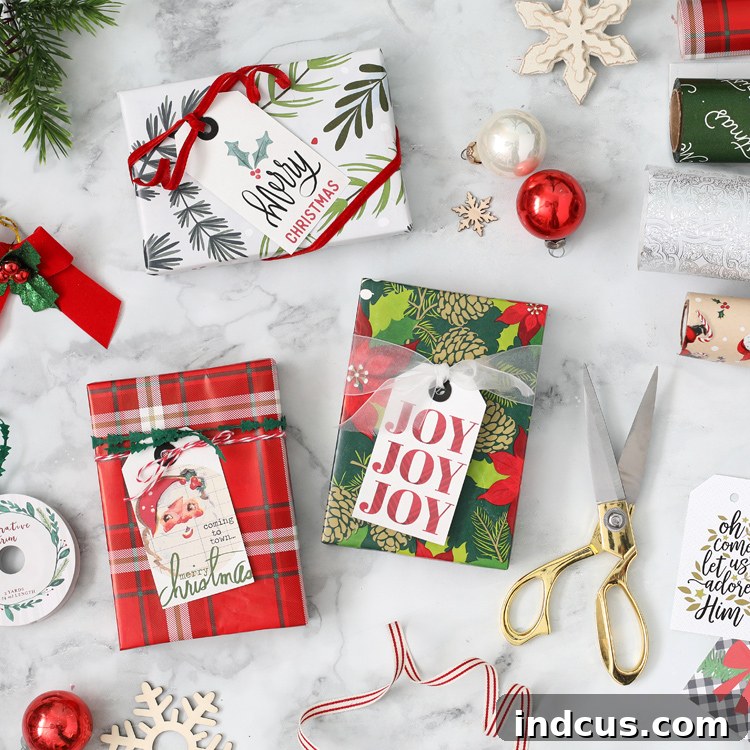
Mastering Silhouette Print and Cut: Create Stunning Custom Gift Tags, Stickers, and More!
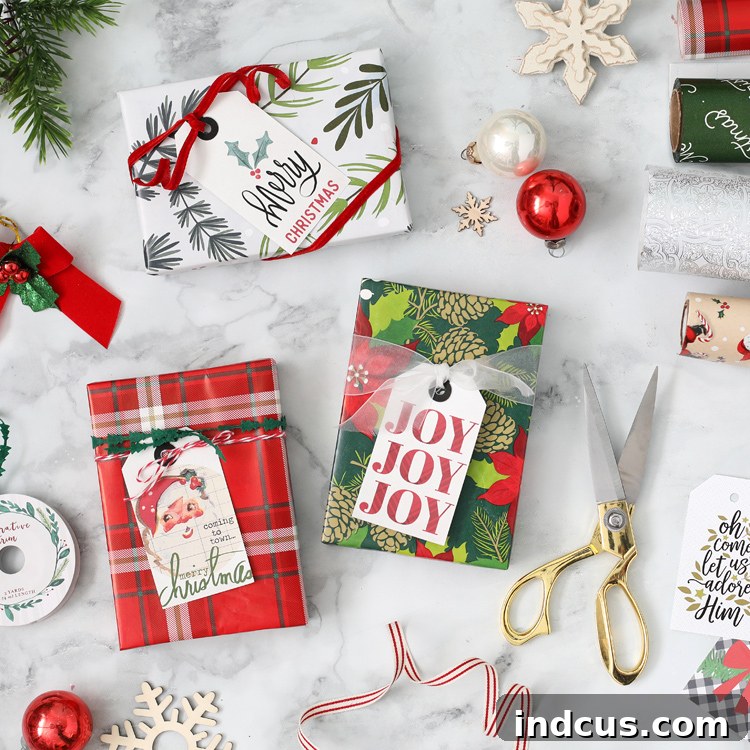
There’s a special joy in giving thoughtful gifts, and for many, that joy extends to the art of presentation. Beautifully wrapped presents, adorned with unique, personalized touches, elevate the entire gifting experience. Today, we’re diving into the incredibly versatile Print and Cut feature on your Silhouette Cameo or Silhouette Portrait machine, demonstrating how you can craft gorgeous, professional-looking holiday gift tags and beyond. Prepare to be amazed by the seamless integration of your printer and cutting machine, opening up a world of creative possibilities.
This post is brought to you in partnership with Silhouette America. Affiliate links may be used.
What is Silhouette Print and Cut?
The Print and Cut feature is one of the most powerful and exciting functionalities within Silhouette Studio, allowing you to bridge the gap between digital design, traditional printing, and precision cutting. In essence, it enables you to print full-color designs using your regular home printer, and then accurately cut those printed designs using your Silhouette electronic cutting machine. This innovative process empowers crafters to create custom stickers, intricate labels, personalized cards, and, of course, the stunning gift tags we’re focusing on today, all with an unparalleled level of professional finish.
Imagine designing a beautiful, full-color graphic – a festive illustration, a witty phrase, or an elegant pattern. With Print and Cut, you send this design to your desktop printer, which prints the artwork along with special “registration marks.” These unique marks act as guides for your Silhouette machine. Once printed, you place the sheet onto your cutting mat, load it into your Silhouette, and its optical scanner “reads” these registration marks. This precise calibration ensures that your Silhouette machine cuts exactly along the lines you’ve designed, perfectly aligning with the printed image. The result is crisp, clean, and perfectly aligned cutouts that look like they came straight from a professional print shop. Once you experience the ease and quality, you’ll undoubtedly be hooked on this fantastic feature!
Finding and Preparing Print and Cut Files in Silhouette Studio
Where Can I Get Print and Cut Files?
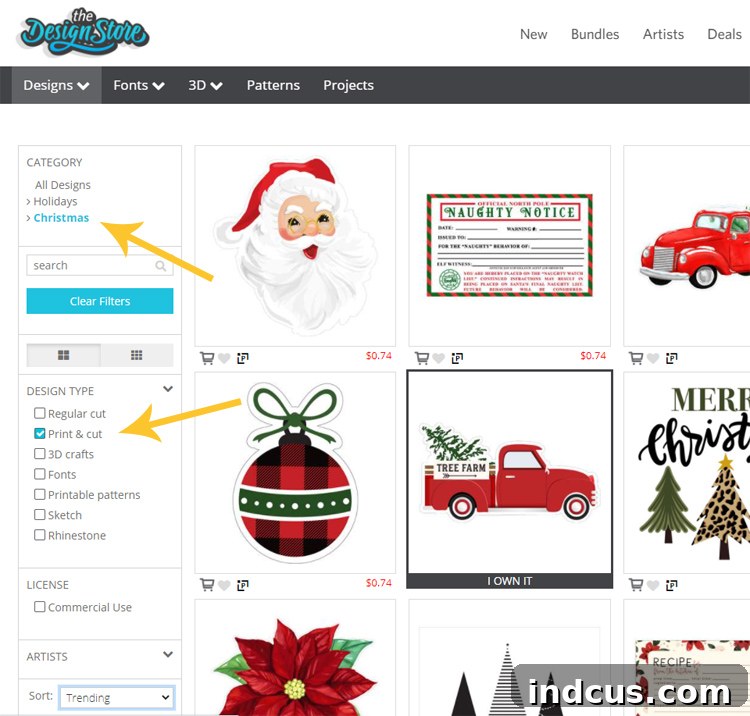
The first step to any successful Print and Cut project is acquiring the right designs. The Silhouette Design Store is an absolute treasure trove, brimming with thousands of adorable and high-quality Print and Cut files. Many of these designs are incredibly affordable, often priced under $1, making it easy to build a diverse collection. To find specific files, especially for the upcoming holidays:
- Navigate to silhouettedesignstore.com.
- Click on the “Designs” tab.
- From the dropdown menu, select “Holidays” and then “Christmas” (or any other holiday/theme you’re interested in).
- Crucially, use the “Design Type” filter on the left sidebar and select “Print & Cut.” This will narrow down your search to only the files specifically designed for this feature.
Here’s a visual guide to help you:
Once you’ve made your purchases, these delightful designs will be automatically synced to your Silhouette Studio software if you have linked your account. Sometimes, you might need to manually update your library. To do this, go to FILE > UPDATE LIBRARY within Silhouette Studio to ensure all your new goodies appear.
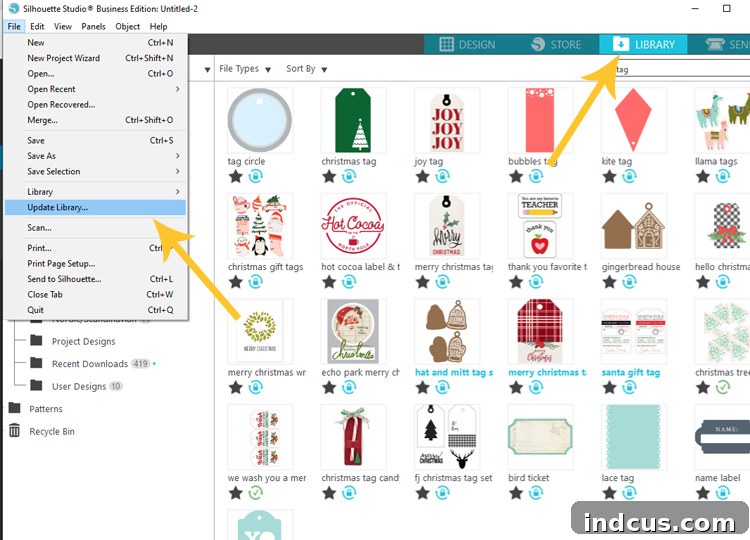
Double-click on the desired file in your Library, and it will magically open in your workspace, ready for customization.
Customizing Your Print and Cut Designs
The beauty of Silhouette Studio lies in its flexibility. You’re not limited to using files exactly as they are downloaded. You can personalize them to perfectly match your creative vision. For instance, I often choose a variety of art styles for my gift tags:
- Using Files As-Is: Some designs are perfect right out of the box and require no modification.
- Modifying Existing Designs: For other tags, I might remove the original cutting lines from the artwork itself and frame the design with a different tag shape or a custom border. This gives a fresh look to a pre-made design.
- Adding Background Patterns: A fantastic feature I recently discovered (and one that adds immense character) is the FILL PATTERN TOOL. You can find this by clicking on the paint palette icon on the right-hand side toolbar. Within that panel, select the third square icon, which will open the Fill Pattern options. Here, you can select from a wide array of patterns to add a background to any shape you have chosen. This is exactly how I created the charming polka dot background for the “Oh Come Let Us Adore Him” tag shown in the screenshot below, transforming a simple design into something truly unique.
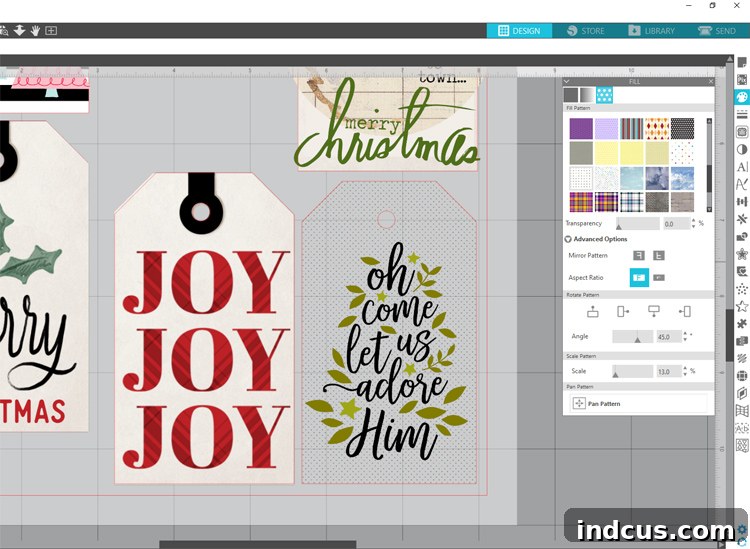
I applied the same technique to add elegant black and white stripes to the tag featuring pink Christmas trees, demonstrating how simple patterns can dramatically enhance your designs. Experiment with different colors, textures, and patterns to create truly bespoke tags, stickers, or labels.
Step-by-Step Silhouette Print & Cut Instructions
Now that your designs are ready, let’s walk through the Print and Cut process to bring them to life.
Step 1: Activate Registration Marks
This is the cornerstone of a successful Print and Cut. Without registration marks, your Silhouette machine won’t know where to cut. To enable them:
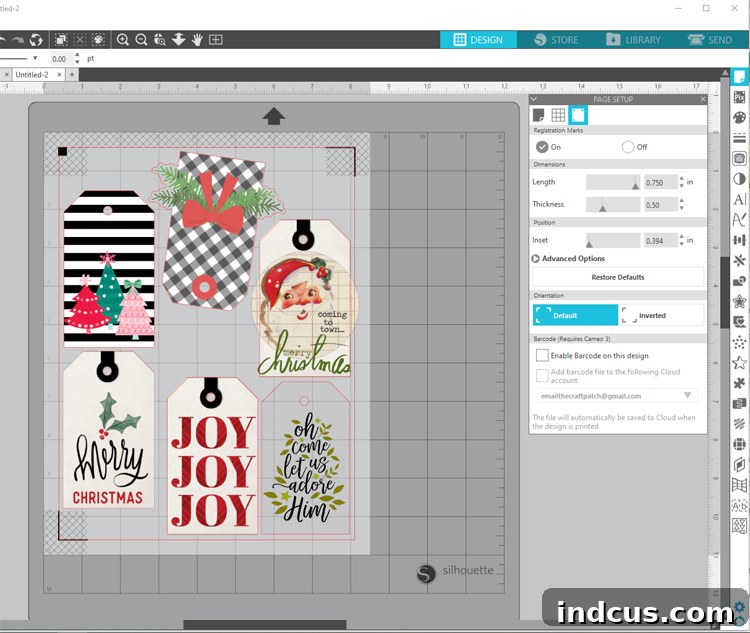
- Click on the Page Setup icon (the icon that looks like a page with a gear) at the top of the tools column on the right-hand side of Silhouette Studio.
- Within the Page Setup panel, click on the third tab, which is the “Registration Marks” tab.
- Click the button that says “Registration Marks: ON.”
Enabling registration marks will add three distinct black marks to your digital mat – one square, and two L-shaped marks. These are critical for your machine’s optical sensor to accurately detect the orientation and position of your printed design on the cutting mat. Your printer will print these marks, and your Silhouette machine will read them before cutting. Here’s where those commands are located:
Pro Tip: Ensure your designs stay within the boundaries created by the registration marks. If any part of your design (or its cut lines) overlaps these marks, your machine might have trouble reading them, leading to cutting errors.
Step 2: Arrange Your Designs for Printing
With registration marks active, it’s time to populate your digital workspace. Since I typically cut my gift tags from standard cardstock, I adjusted my mat settings in Page Setup to reflect an 8.5″ x 11″ work area, mimicking a standard letter-sized sheet of paper. This allows me to visualize exactly how many tags I can fit on one page.
Maximize your material usage by adding multiple files and arranging them efficiently within the cutting area. Try to fill the entire usable space on the page without overlapping any designs or, crucially, the registration marks. You can duplicate designs, resize them, and rotate them to fit snugly. Remember, your personal printer will print all the colors and images, but it will NOT print the red cut lines you see in Silhouette Studio. Only your Silhouette machine’s laser reader can “see” these lines and will use them for cutting.
Advanced Tip: For professional-looking, borderless designs, consider adding a “bleed.” This involves extending your design slightly beyond the intended cut line. This way, if there’s a tiny shift during cutting, you won’t end up with a white edge around your colorful design.
Step 3: Print Your Designs
This step involves your personal printer. Load your printer with your chosen material. For gift tags, cardstock is a popular choice due to its durability and premium feel. However, the possibilities are vast:
- Cardstock: Available in various weights and finishes (matte, glossy, textured).
- Sticker Paper: Perfect for creating custom labels and decals (matte, glossy, clear, printable vinyl).
- Gold Foil Sticker Sheets: For an extra touch of elegance and sparkle.
- Kraft Paper: For a rustic, natural look.
- Photo Paper: For vibrant, high-quality images.
Ensure your printer settings are adjusted for the specific material you’re using (e.g., “cardstock” or “photo paper” for best print quality). Then, go to FILE > PRINT within Silhouette Studio. Your printer will print your designs along with the essential registration marks.
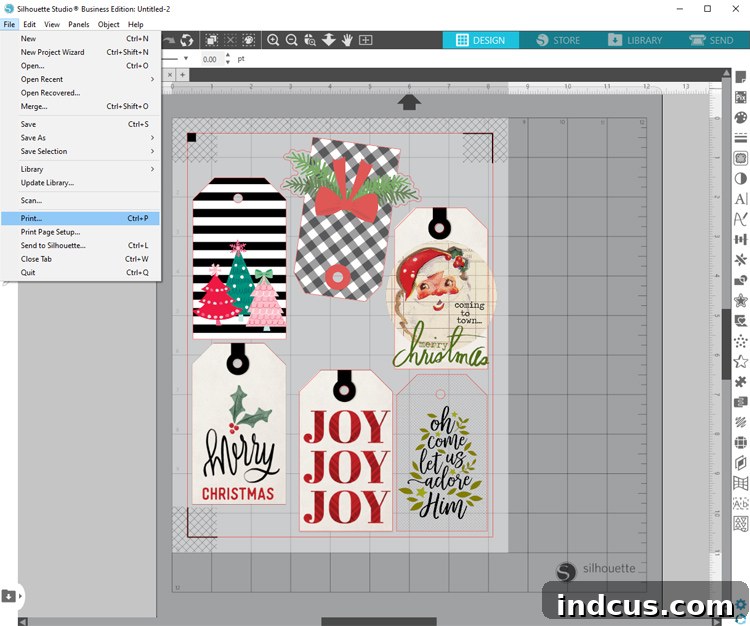
Important: Always use a good quality printer with sufficient ink for vibrant colors and crisp registration marks. Faded or blurry registration marks can confuse your Silhouette machine.
Step 4: Cut with Your Silhouette Machine
Once your designs are printed, it’s time for your Silhouette machine to work its magic:
- Place on Mat: Carefully place your printed sheet onto a cutting mat, aligning it with the top-left corner of the mat and ensuring it’s smoothly adhered.
- Load Mat: Load the cutting mat into your Portrait or Cameo machine according to the manufacturer’s instructions.
- Adjust Cut Settings: In Silhouette Studio, click on the “SEND” tab (usually located in the top right corner). Here, you will adjust your cut settings to match the material you are using. This includes selecting the correct material type (e.g., “Cardstock, Heavy”), adjusting the blade depth, force, and speed.
- Perform a Test Cut: Always, always, always perform a test cut (a small square or triangle) on a scrap piece of the same material before committing to your main project. This saves you from wasting valuable printed sheets.
- Send to Silhouette: Once your settings are optimized, click the “SEND” button. Your Silhouette machine will begin by moving its optical scanner to detect the three registration marks. This “seeing” process allows it to precisely align its cutting path with your printed design. How cool and ingenious is that?!
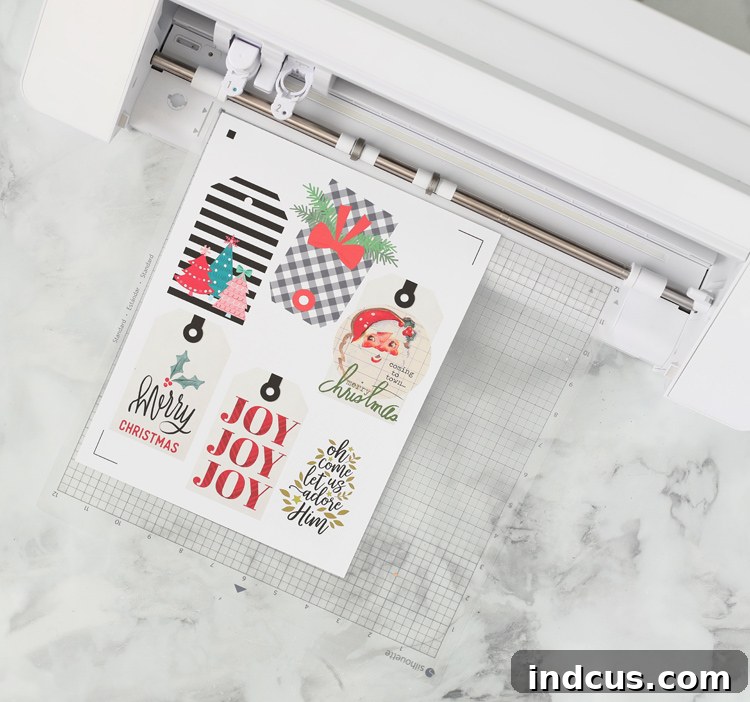
After the machine finishes cutting, carefully unload your mat and peel away your perfectly cut designs. You’ll be amazed at the precision and professional quality!
Beyond Gift Tags: Creative Uses for Print & Cut
While custom gift tags are a fantastic application, the Print & Cut feature’s versatility extends far beyond holiday embellishments. Once you master the basics, you’ll discover endless creative possibilities:
Custom Stickers for Every Occasion
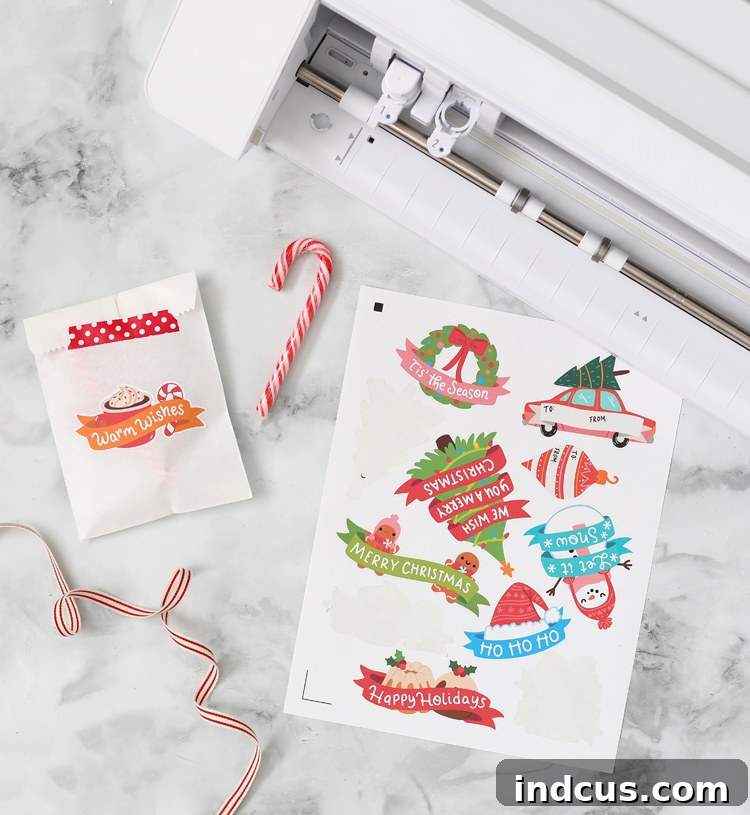
The Print & Cut feature is absolutely perfect for making custom stickers of all shapes and sizes. All sorts of designs are available in the Silhouette Design Store, from whimsical illustrations to practical labels. Imagine being able to print and cut dozens of perfectly aligned stickers to:
- Package Christmas Goodies: Slap a festive “Handmade with Love” or “Merry Christmas” sticker onto baked goods bags, gift boxes, or homemade preserves. It makes packaging incredibly easy and professional.
- Personalize Planners and Journals: Create themed stickers for weekly layouts, habit trackers, or decorative elements.
- Decorate Home Items: Custom labels for jars, bottles, or storage bins.
- Craft Projects: Add unique sticker elements to scrapbooks, cards, or kids’ crafts.
- Branding: Small business owners can create their own product labels or branding stickers.
Personalized Address Labels for Mailing
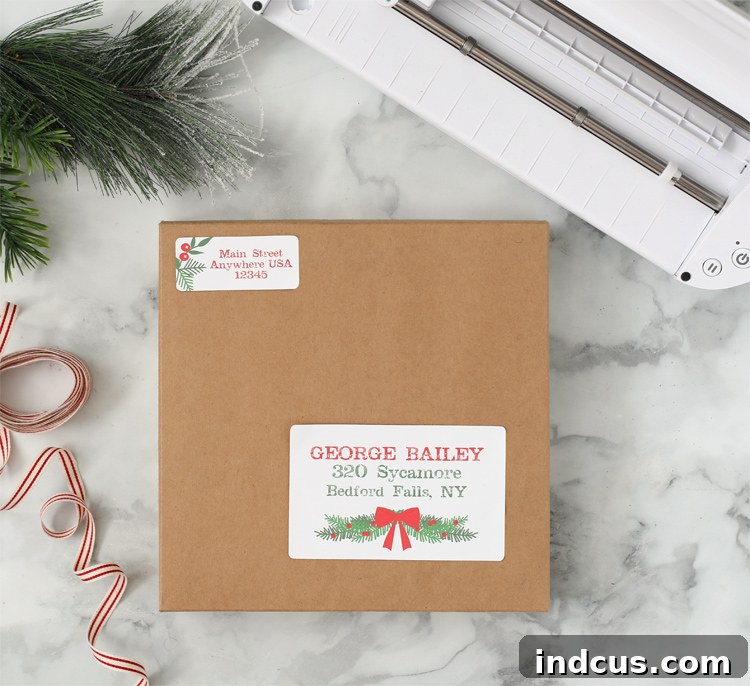
Another brilliant way to leverage Print & Cut is to create adorable and professional address labels for mailing presents, invitations, or everyday correspondence. Wouldn’t you be even more excited to open a package that features charming, custom-designed labels? I designed all of these right inside Silhouette Studio in minutes! The key here is a simple trick: remove the cut lines from any internal design elements (like the text or small illustrations) and only leave the cut lines around the outside perimeter of the label shape itself. This way, your machine cuts out the entire label cleanly, while all the internal elements remain part of the printed design.
This technique can also be applied to create:
- Bottle Labels: For homemade wines, spirits, or bath products.
- Food Labels: For pantry organization or baked goods.
- Return Address Labels: With your family’s unique flair.
- Event Favors: Custom labels for wedding or party favors.
Other Creative Print & Cut Applications
- Greeting Cards: Print detailed card fronts and have your Silhouette cut intricate shapes or pop-up elements.
- Party Decorations: Create custom cupcake toppers, banners, or place cards.
- Scrapbooking Embellishments: Print and cut unique shapes, journaling cards, or photo frames.
- Iron-On Transfers: Use printable heat transfer vinyl to create custom apparel designs.
- Planner Inserts: Design and cut your own planner pages or dashboards.
Tips for Successful Print & Cut Projects
To ensure flawless results every time, keep these tips in mind:
- Calibrate Your Machine: Periodically calibrate your Silhouette machine to maintain optimal cutting accuracy, especially if you notice misalignments.
- Adequate Lighting: Ensure your Silhouette machine is in a well-lit area when it’s scanning registration marks. Shadows or poor lighting can interfere with the sensor.
- Clean Mat: A clean, properly sticky cutting mat is crucial for holding your printed material securely in place, preventing shifting during the cut.
- Ink Levels: Always check your printer’s ink levels before printing. Faint registration marks can cause cutting errors.
- Test Cuts Are Your Best Friend: Never skip a test cut, especially when working with new materials or designs. It saves time, material, and frustration.
- Save Your Settings: Once you find perfect cut settings for a particular material, save them as a custom setting in Silhouette Studio for future use.
Unleash Your Creativity with Silhouette Print & Cut
If you haven’t yet explored the incredible potential of the Print & Cut feature, now is the time! It’s an incredibly fun and rewarding process that empowers you to add a unique, personalized, and professional touch to so many aspects of your crafting and gifting. Even my husband, typically indifferent to my crafting endeavors, was genuinely impressed by some of the intricate tags I created – and that’s saying something! LOL.
The precision, the vibrant colors, and the sheer ease of transforming your digital designs into tangible, perfectly cut creations are truly captivating. Whether you’re crafting for the holidays, personalizing everyday items, or starting a small business, Print & Cut will become an indispensable tool in your creative arsenal.
We’d love to see the amazing projects you create with your Silhouette Print & Cut! Share your fun ways of using this feature by sending us a message on Facebook or Instagram to show off your brilliant work!
Like this project? Pin it so you don’t forget it!
This post was compensated by Silhouette America but all ideas, opinions and words are my own.